Physical Project
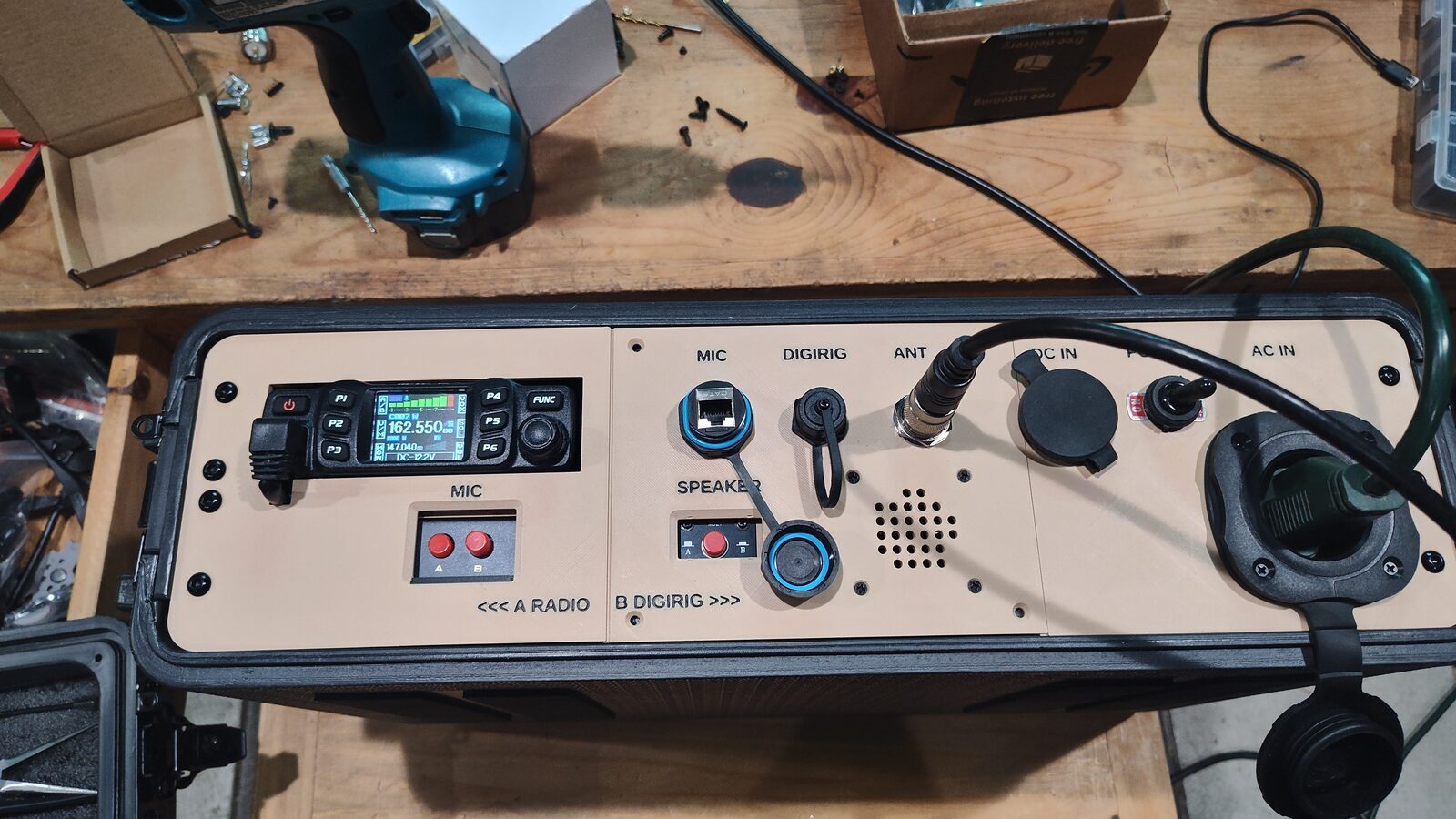
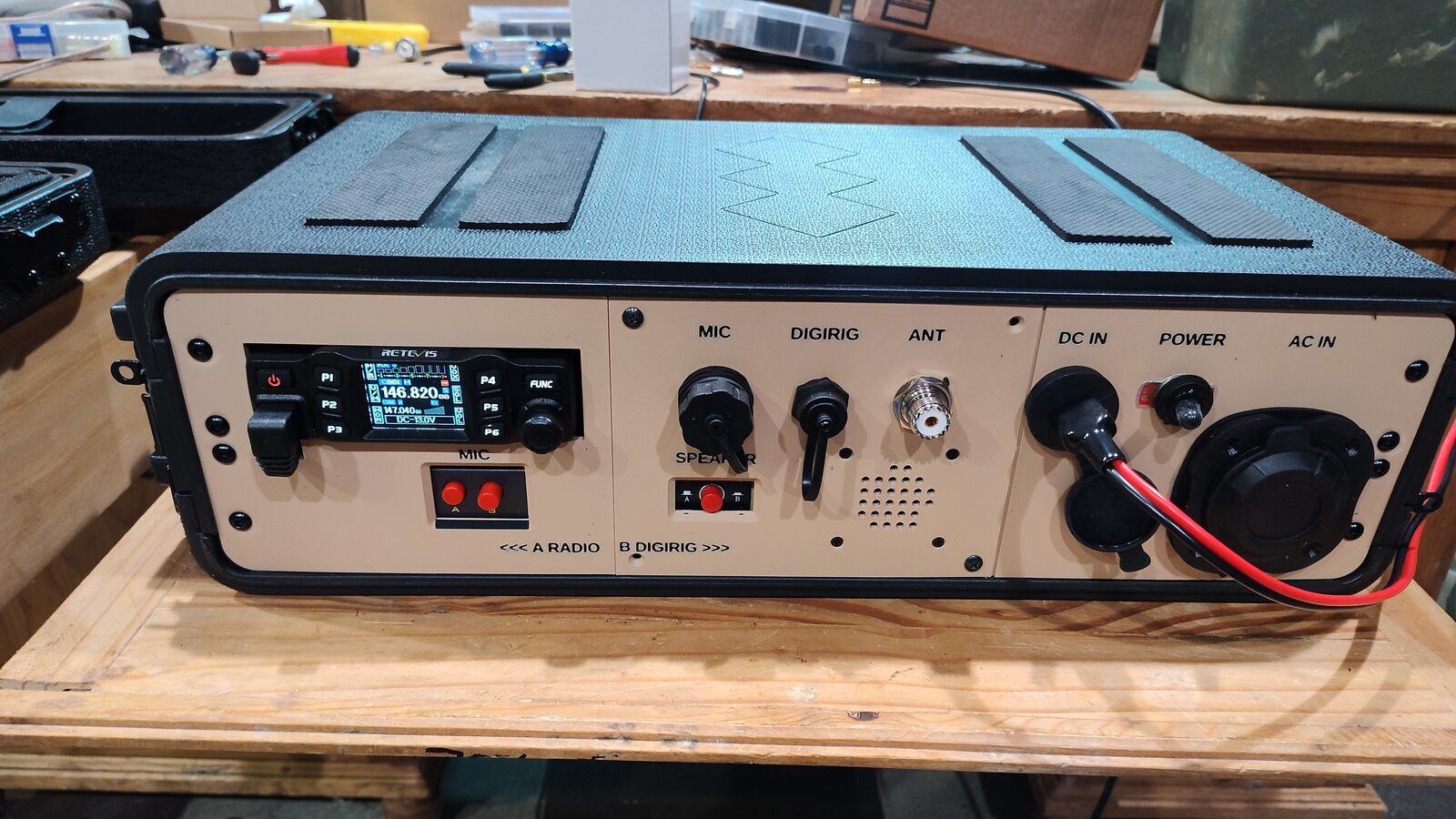
VHF/UHF Go Kit
A portable VHF/UHF radio kit for taking amateur radio beyond the shack. Parts, photos, and build notes will be added as the kit comes together.
Overview
The build
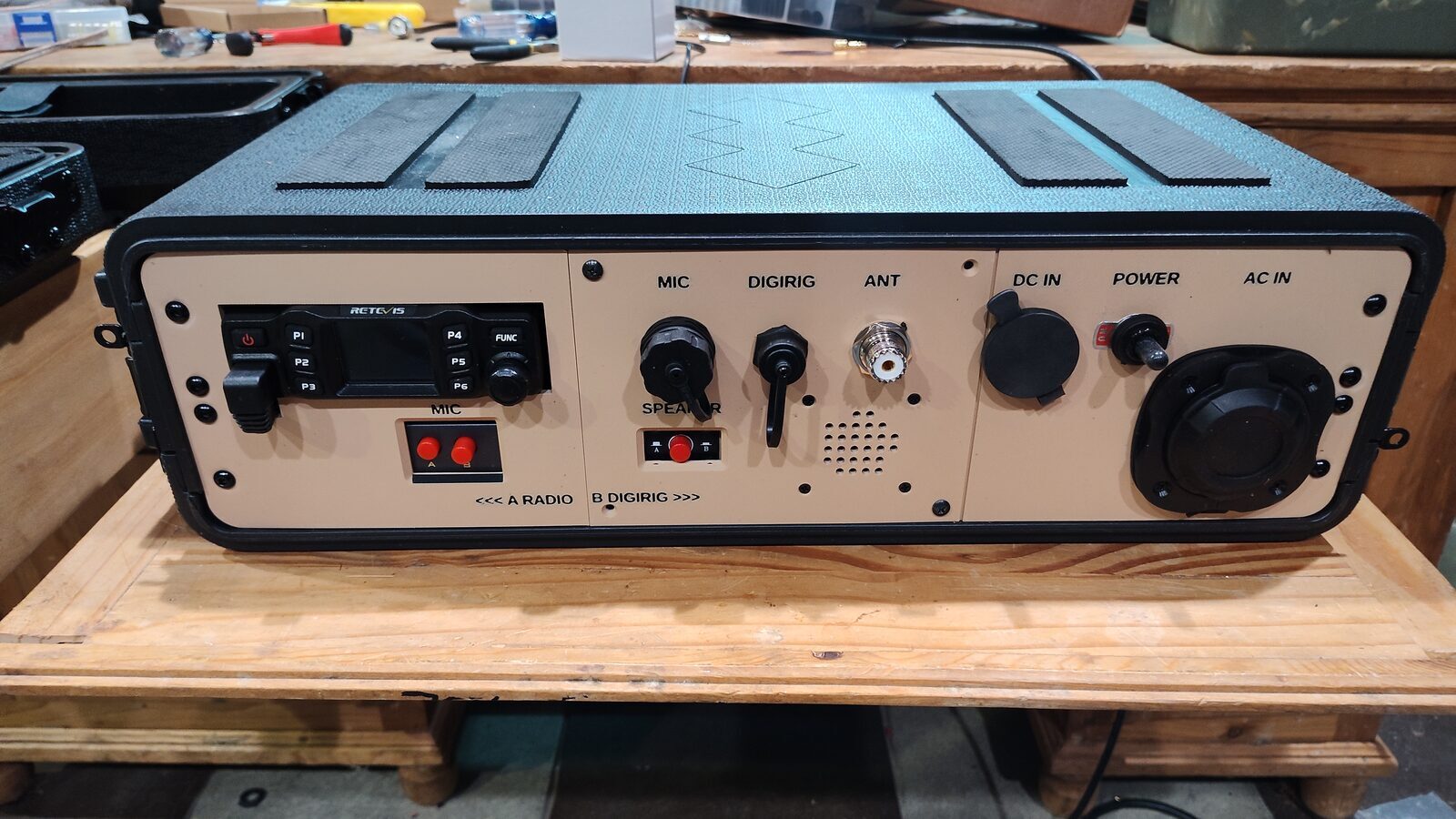
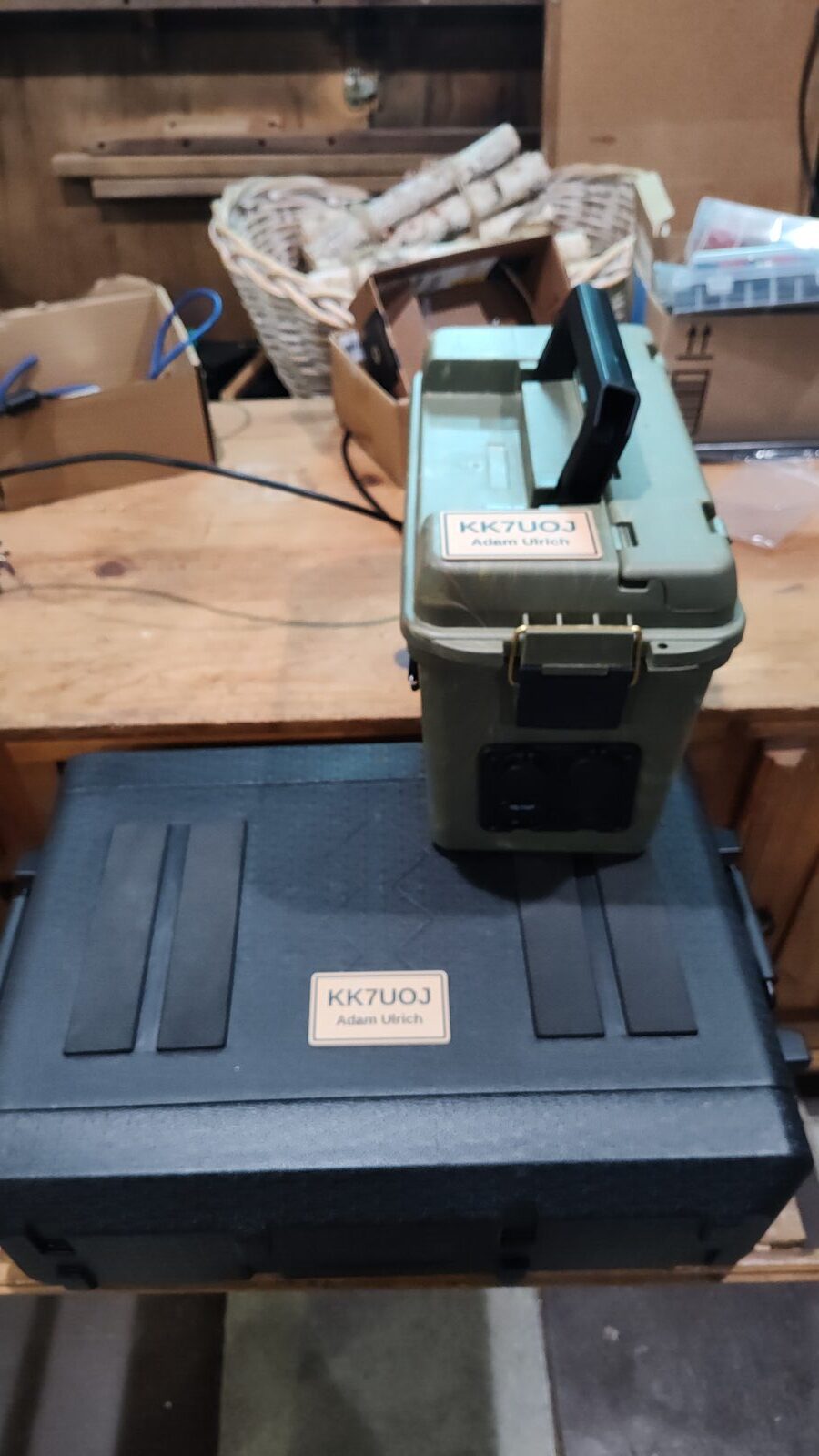
This page will document the decisions behind the go kit, from the radio and antenna to transport, power, storage, and setup in the field.
Components
Operating Goals
Goals, Problems, Solutions
The go kit is intended to support voice and FM-based digital modes, including Packet/Winlink, APRS, fldigi, and FM FT8.
Problem 1
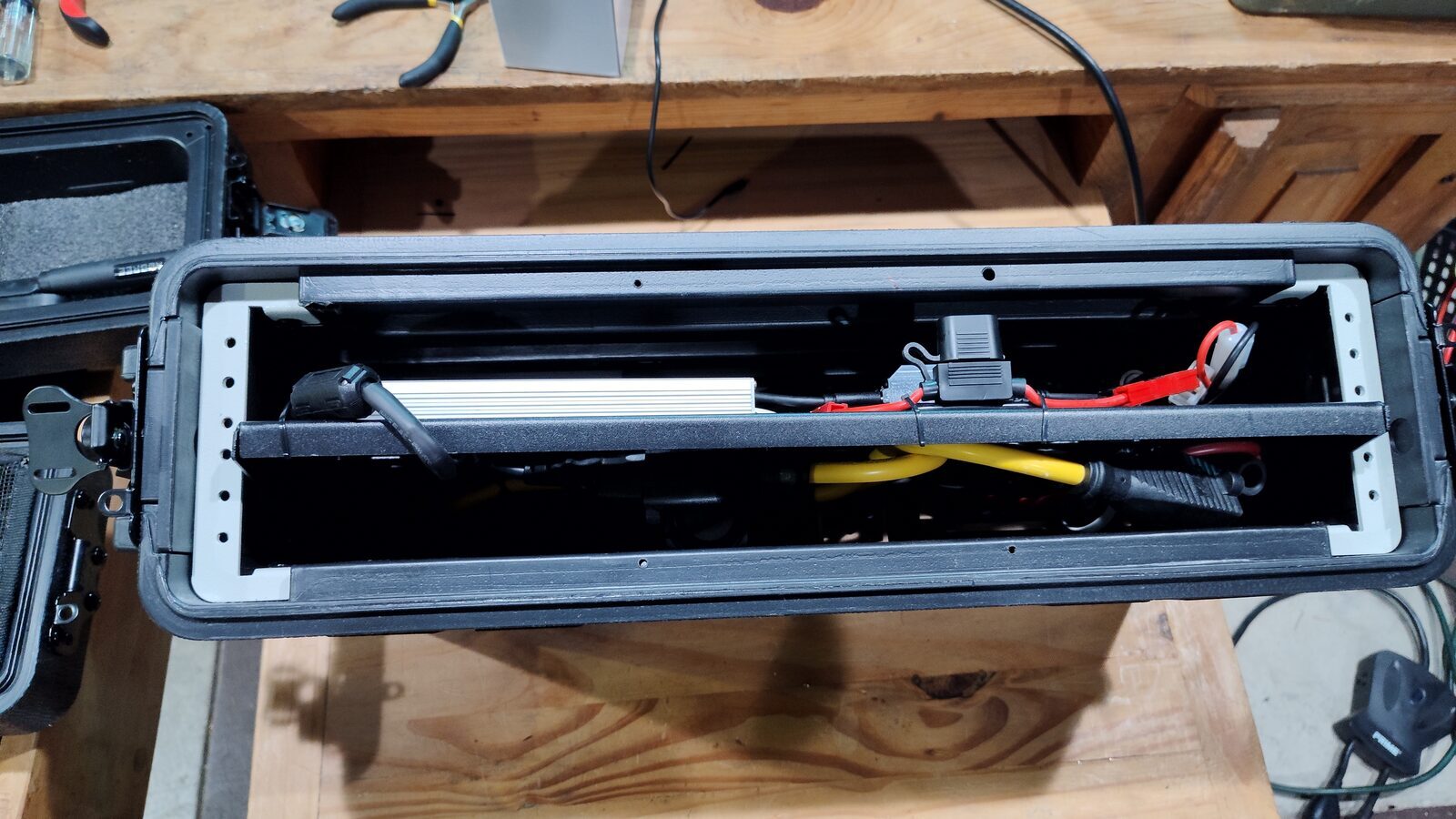
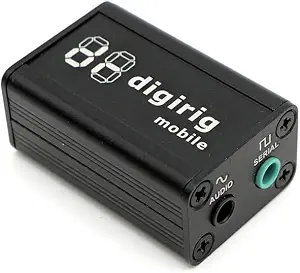
- The DigiRig requires a connection to the external speaker port.
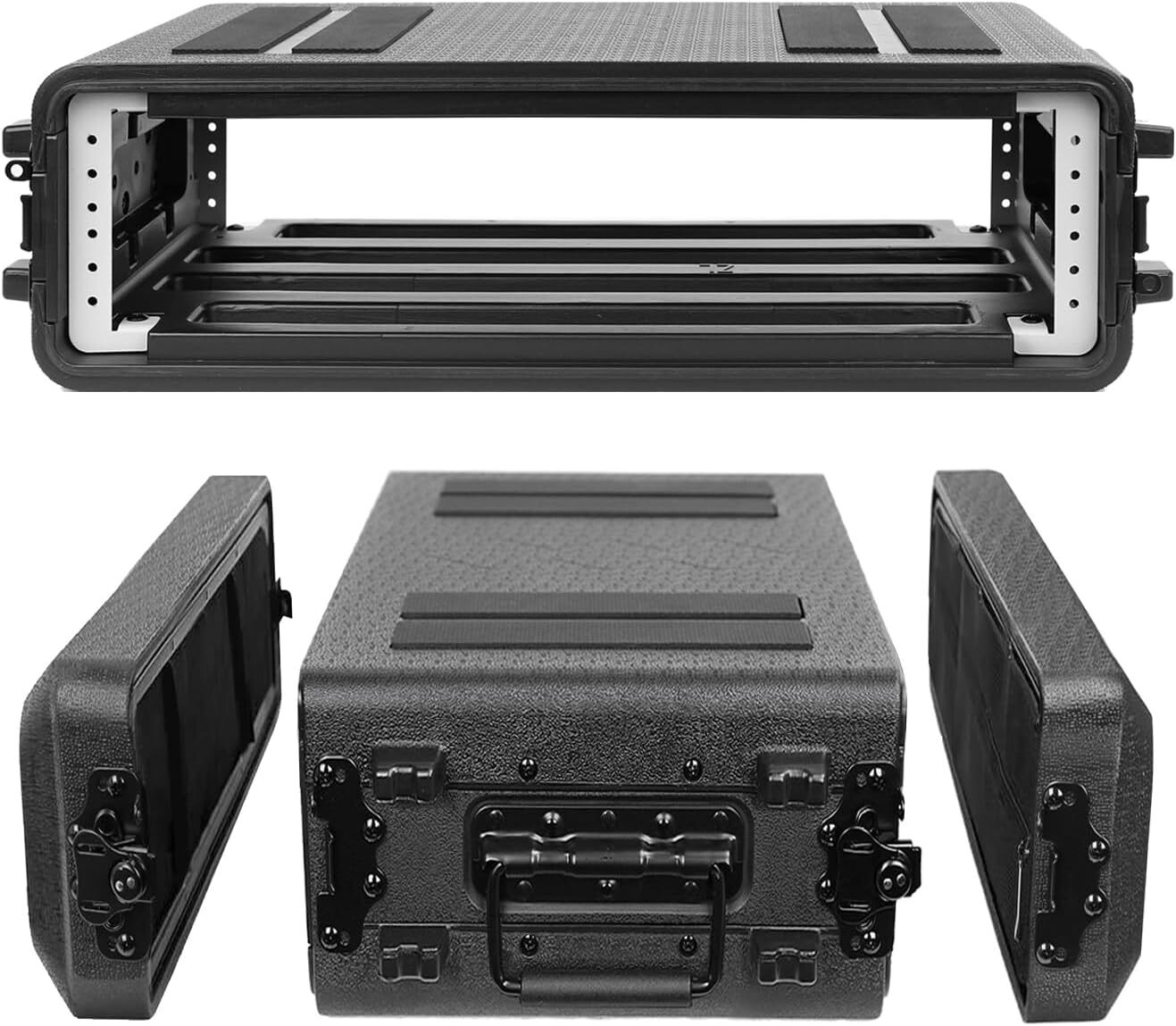
- The audio port is difficult to reach once the radio is installed in the 2U hardcase.
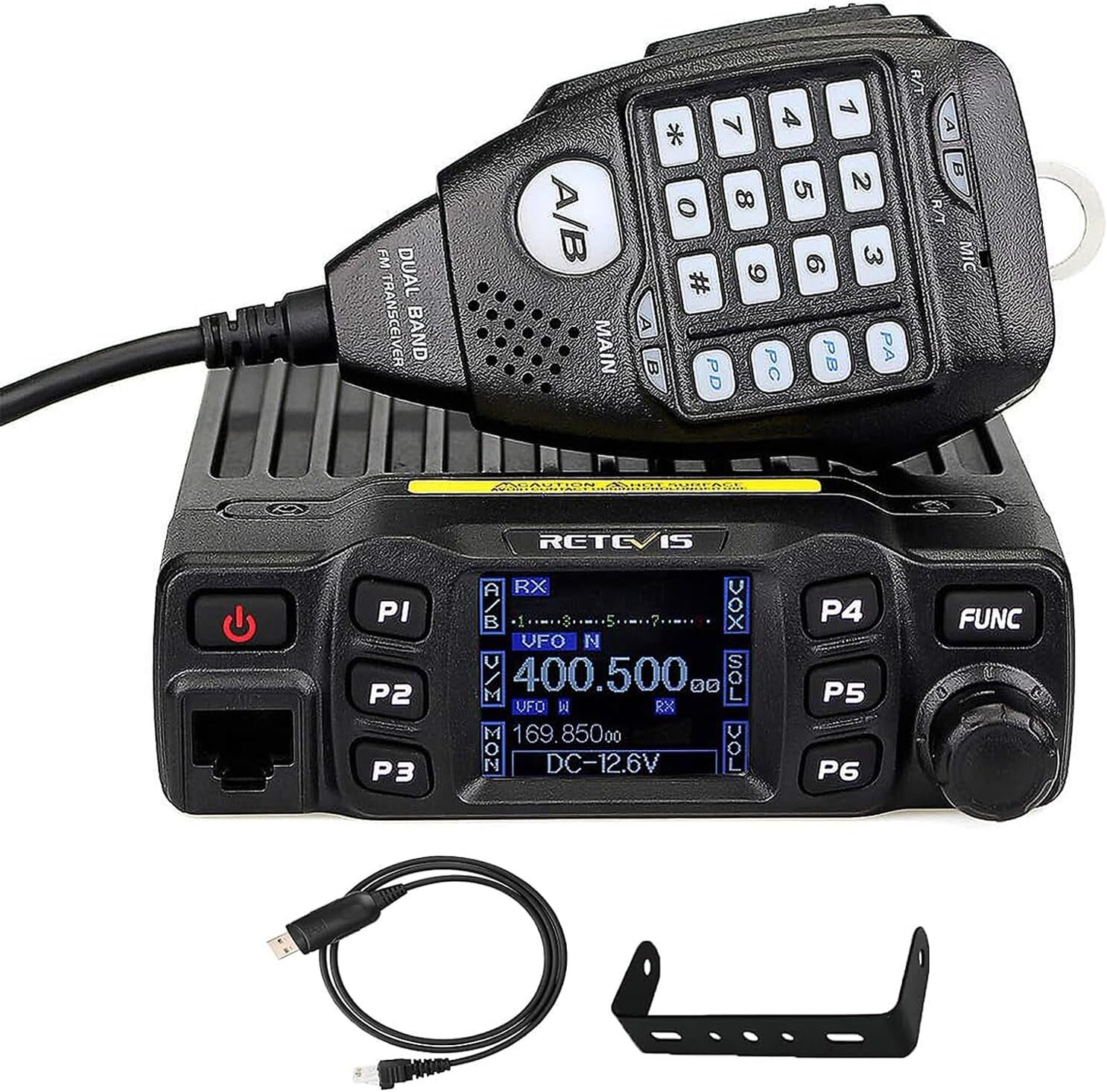
- The RT-95 disables its internal speaker as soon as something is plugged into the external speaker port.
Solution
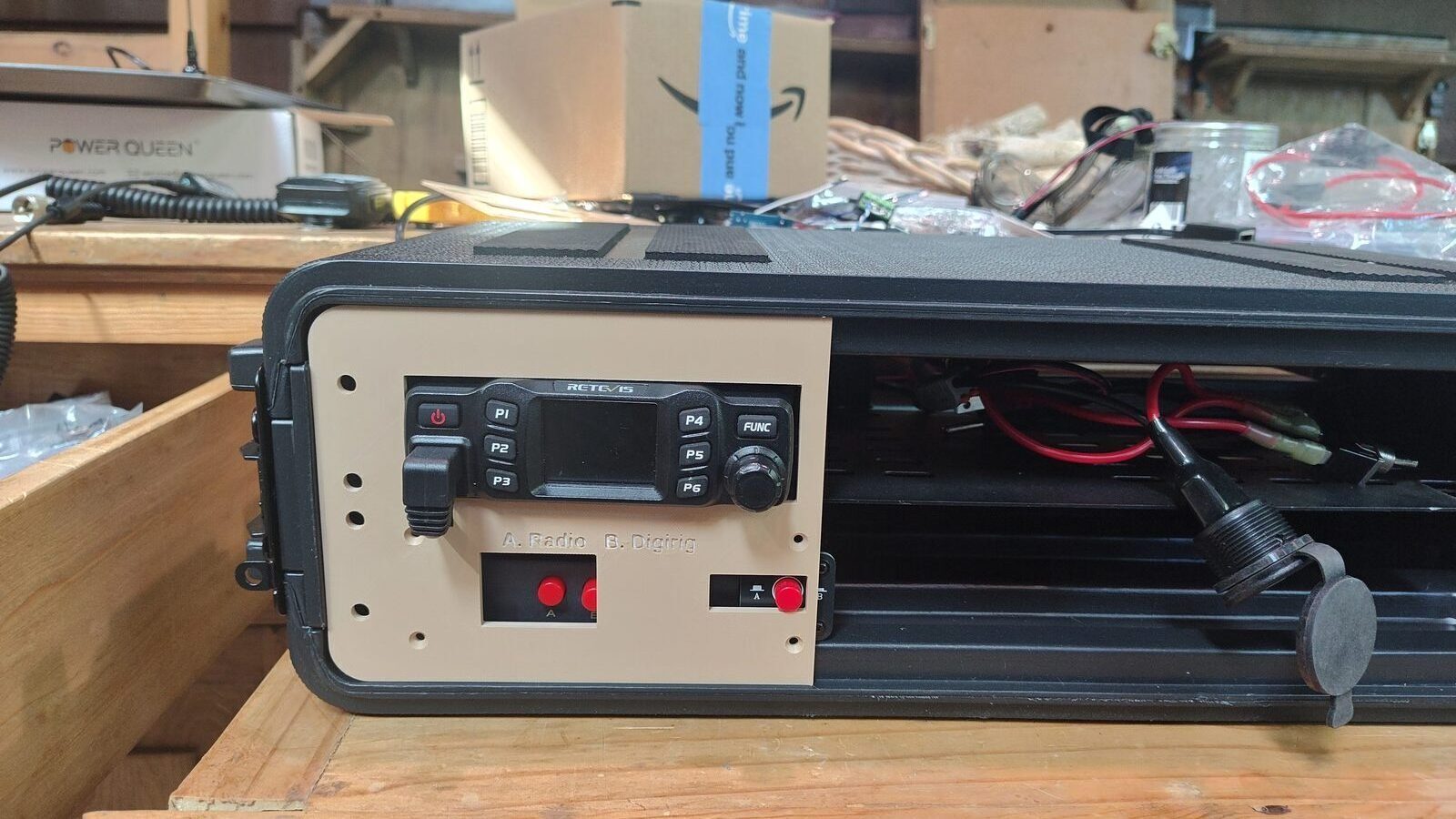
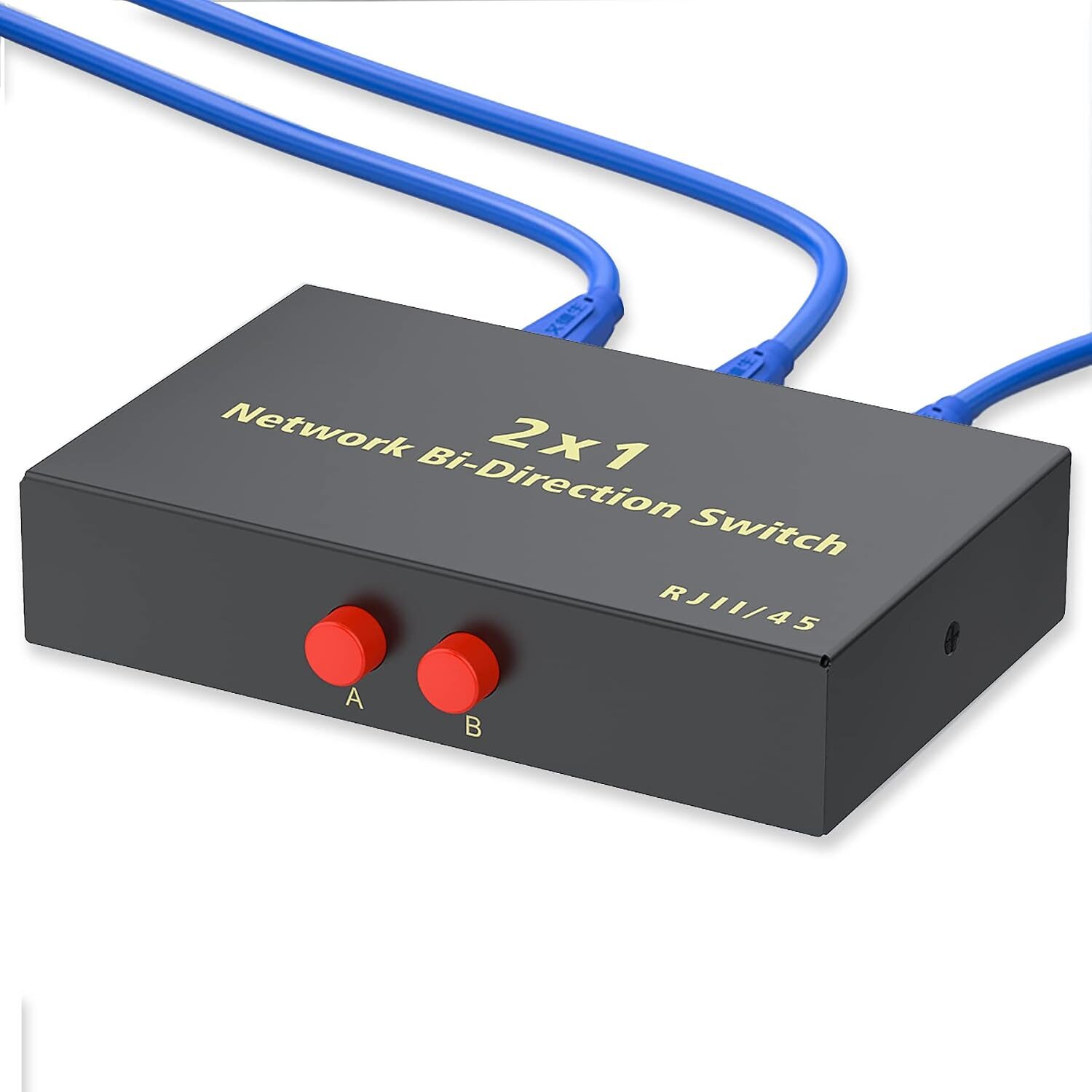
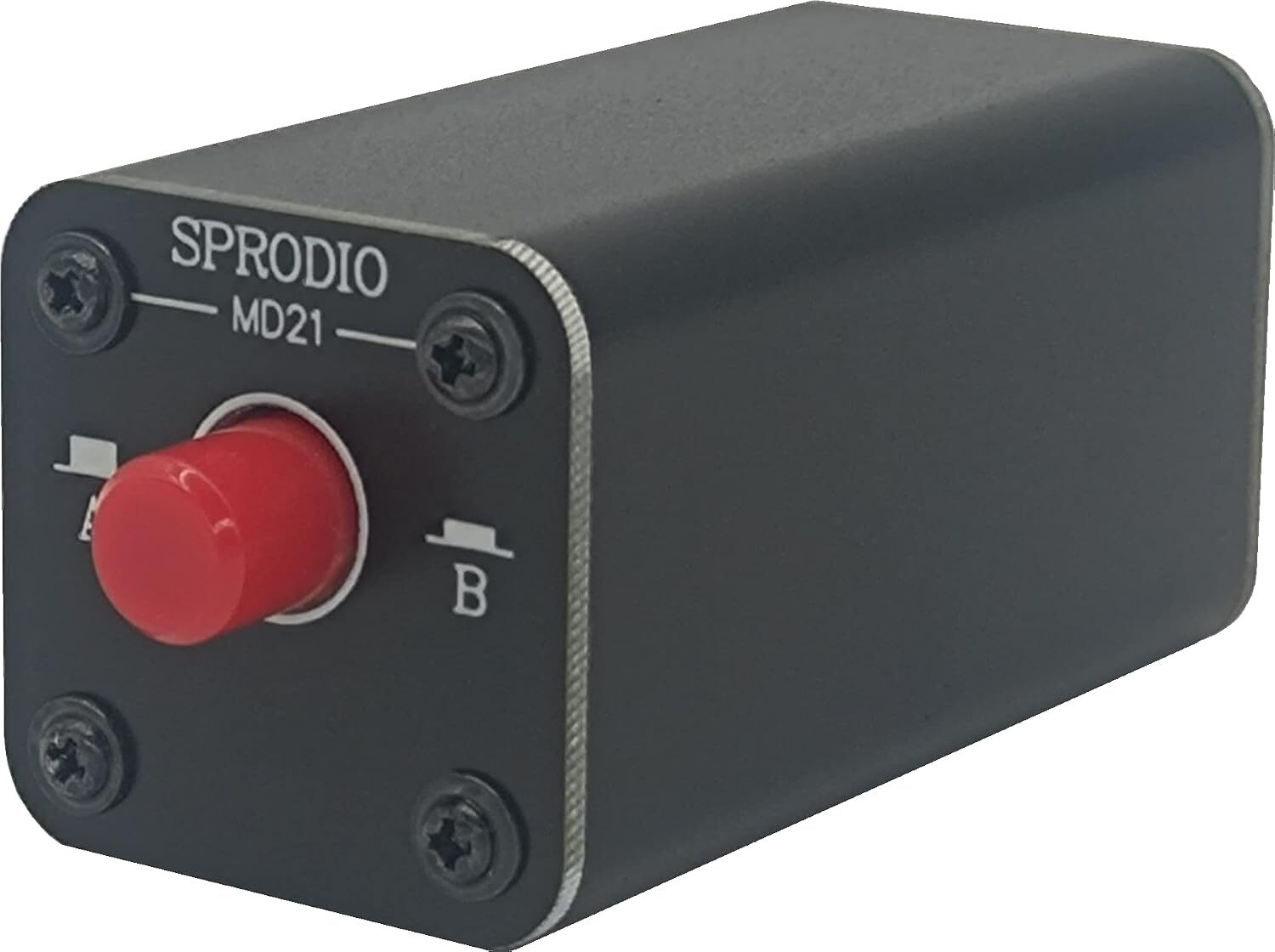
- An A/B RJ45 switch, A/B audio switch, and external speaker wired correctly support Winlink and voice communications. Together, the audio switch and external speaker provide a practical way to move between radio audio and DigiRig audio.
Problem 2
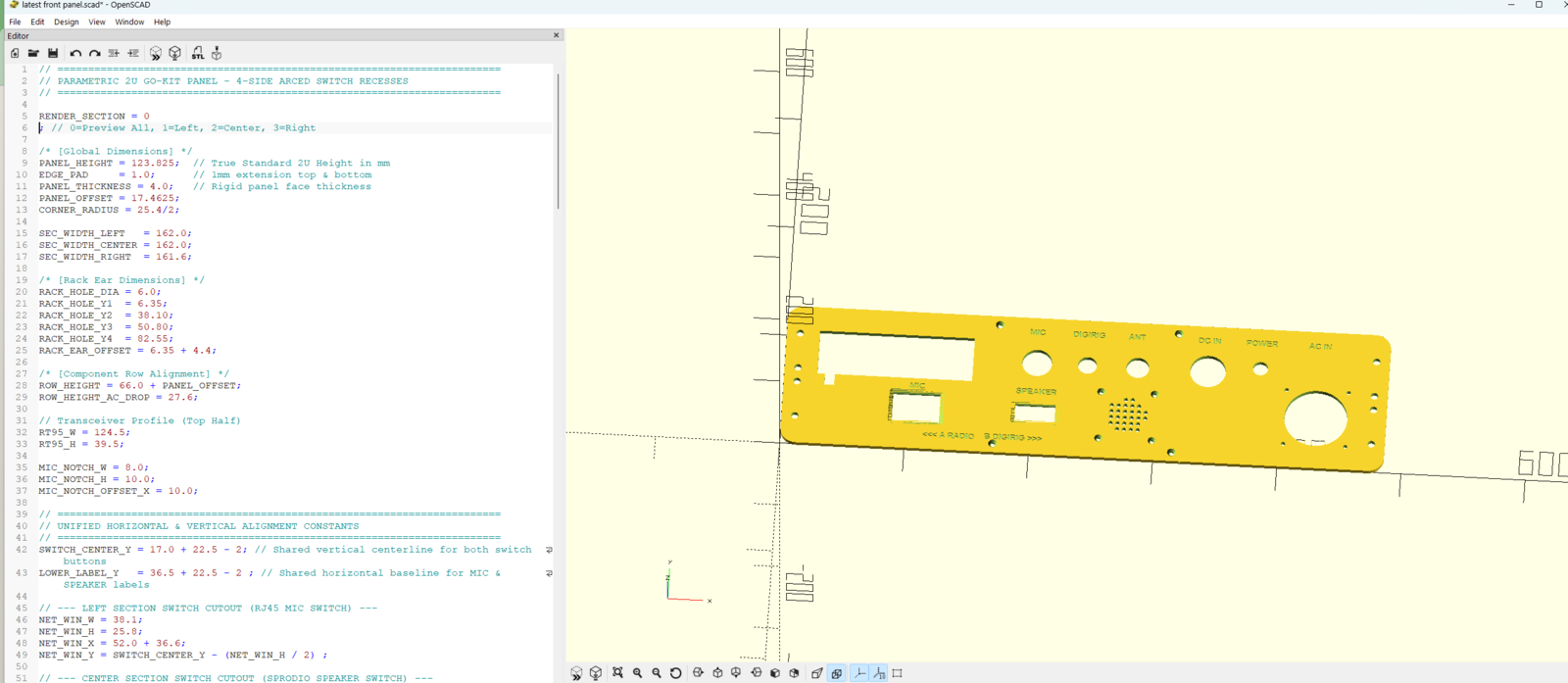
- You cannot lock down a faceplate design until all of the components are positioned. Cutting a piece of wood or sheet metal makes iteration challenging.
Solution
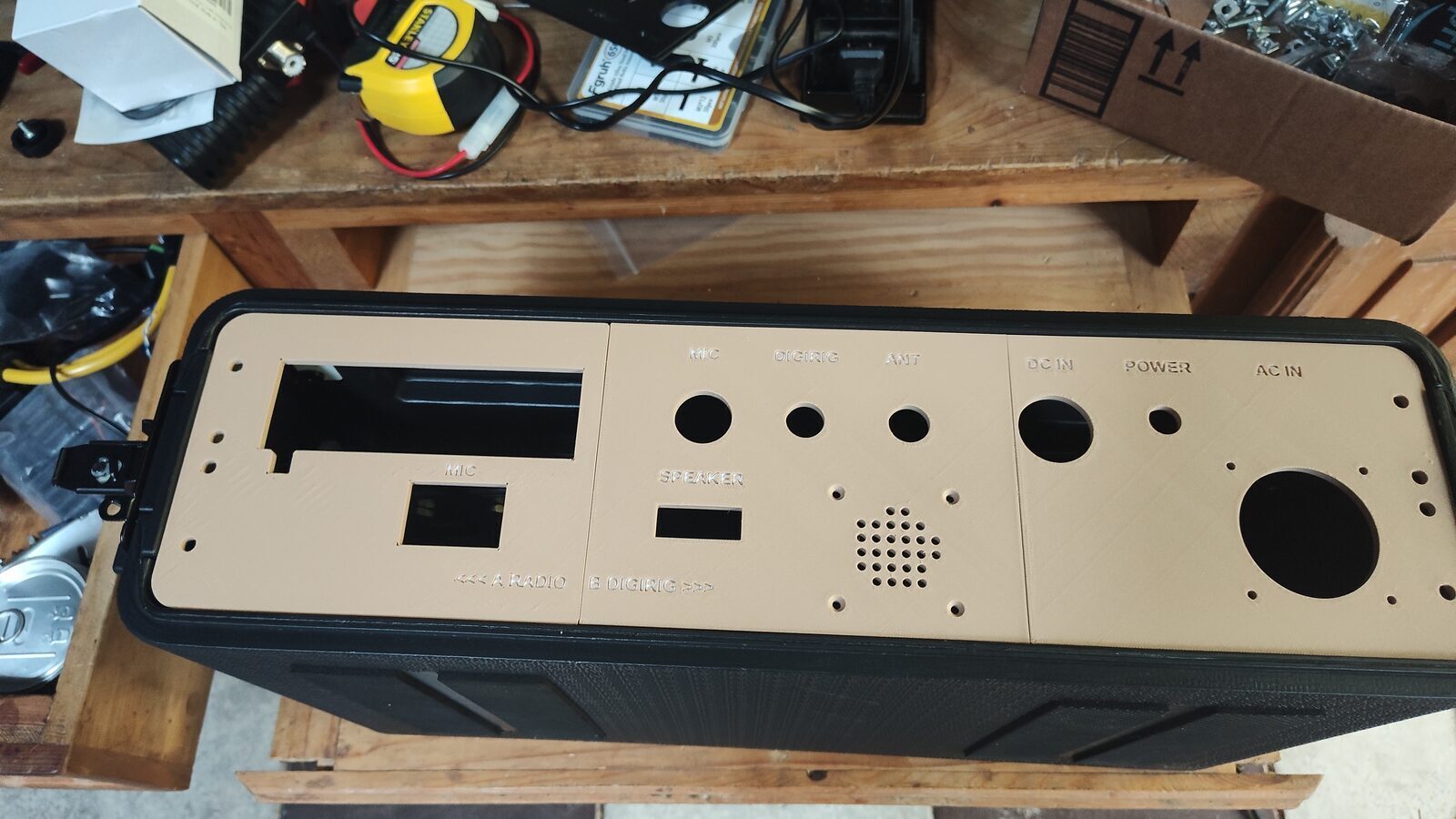
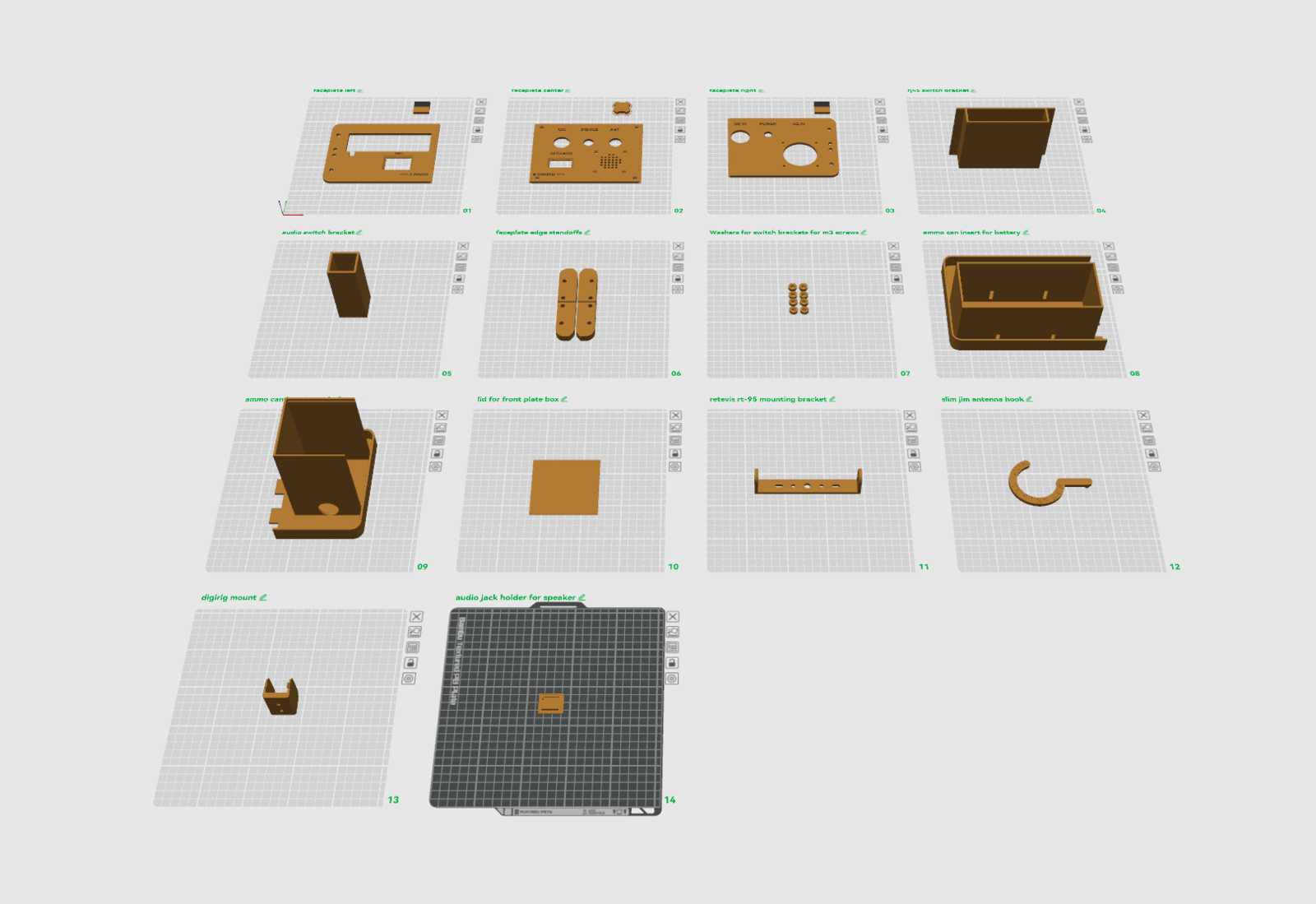
- Use AI to generate 3D-printable parametric SCAD files and iterate on the faceplate design.
Problem 3
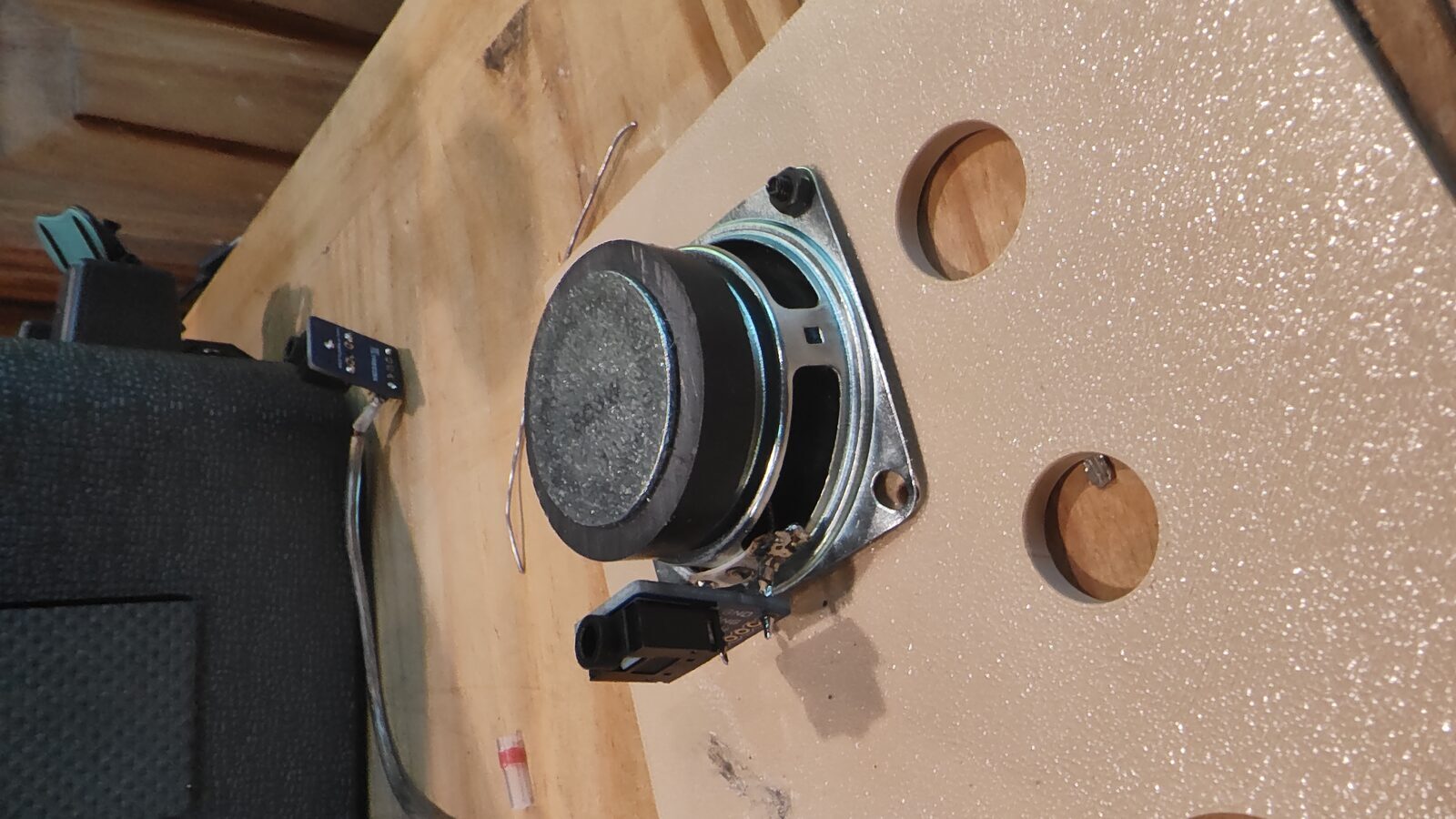
- Mounting the speaker to the faceplate while protecting the wiring during disassembly is difficult. The speaker connection points are tiny, and the small wires are fragile.
Solution
- Add a 3.5mm jack to the speaker and use a standard audio cable for the connection to the A/B switch.
Problem 4
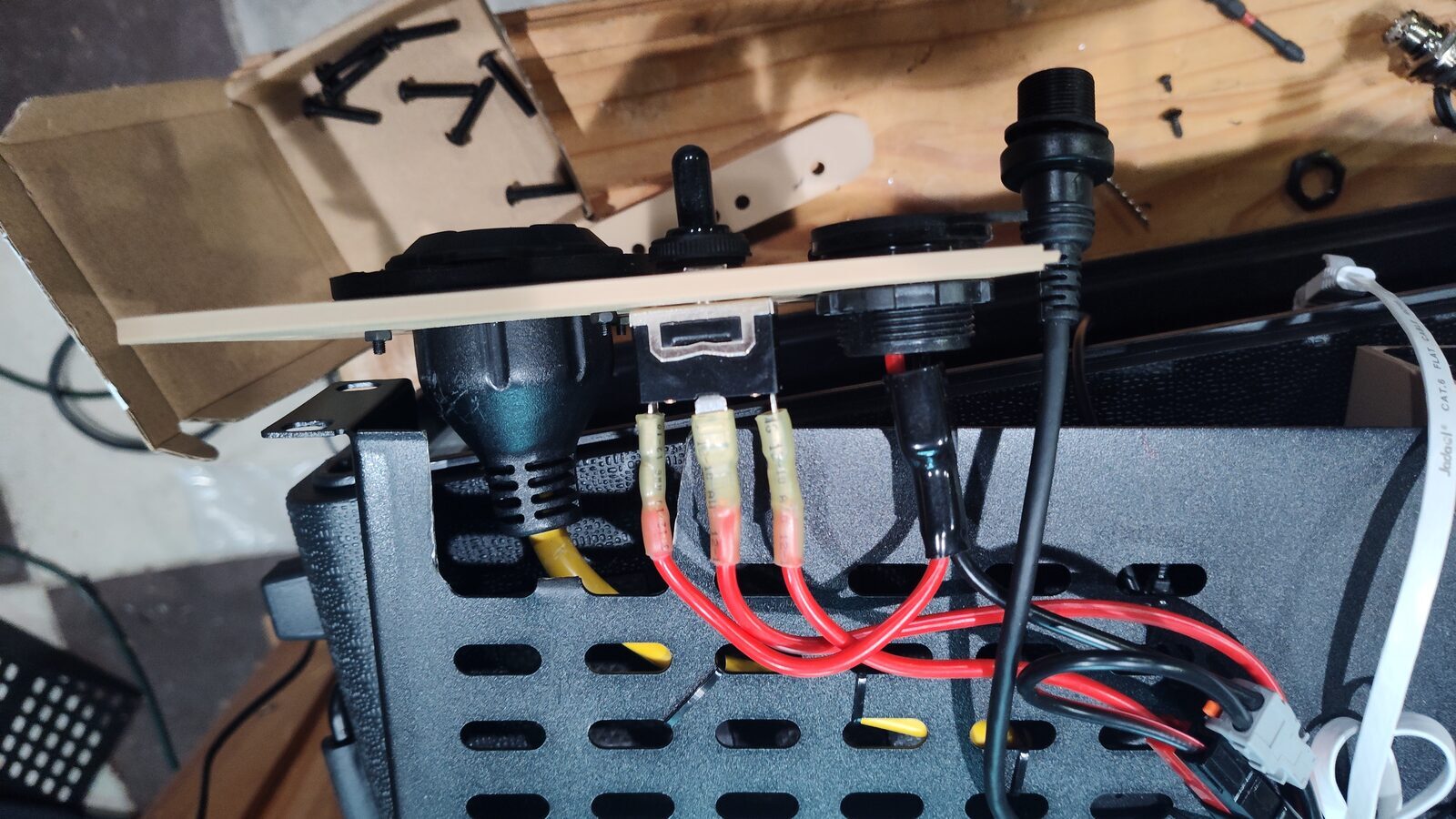
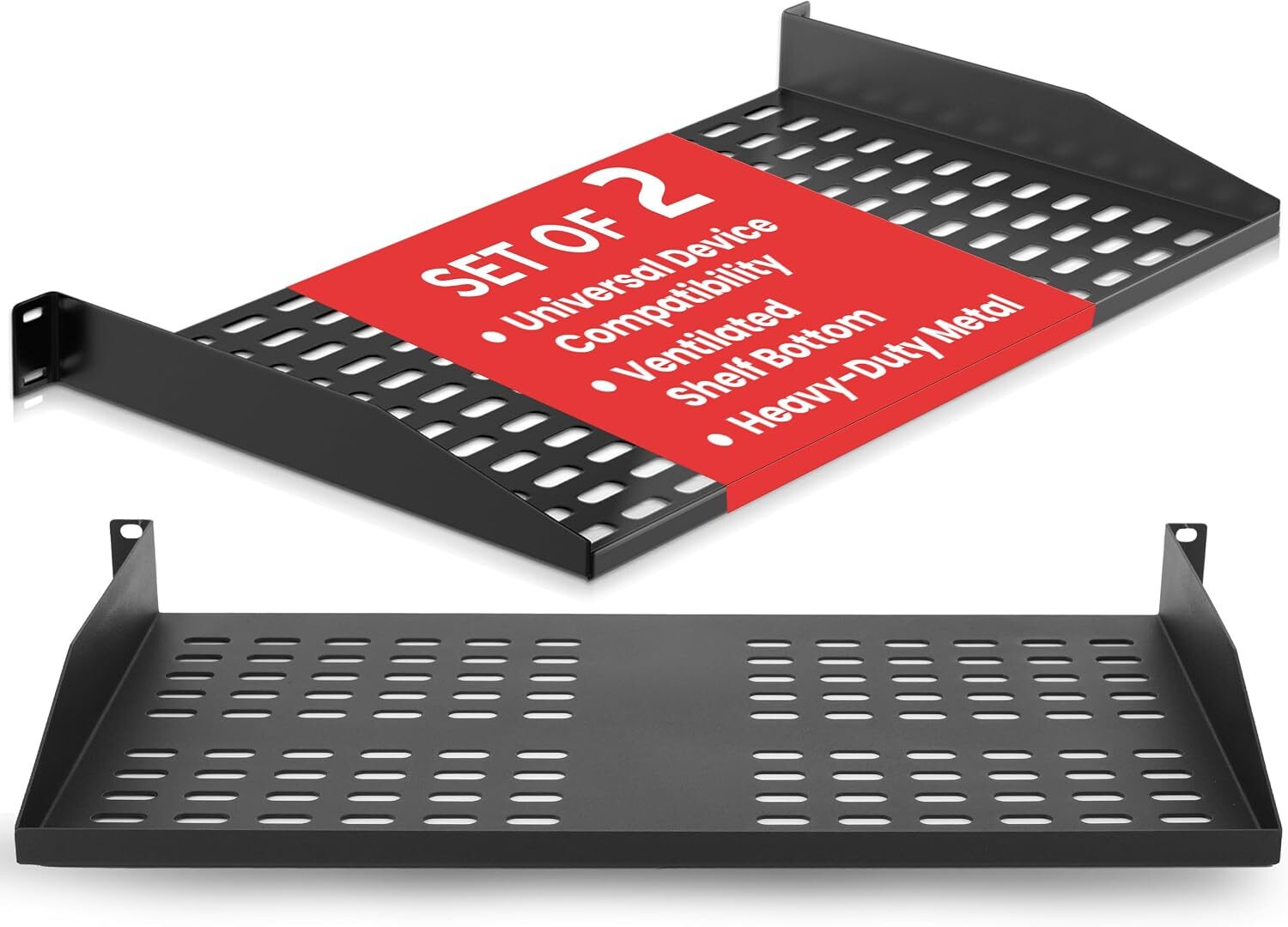
- The AC power connection requires a 2-inch hole. The 2U case is 3.5 inches high, but the shelf sits at 1.75 inches.
Solution
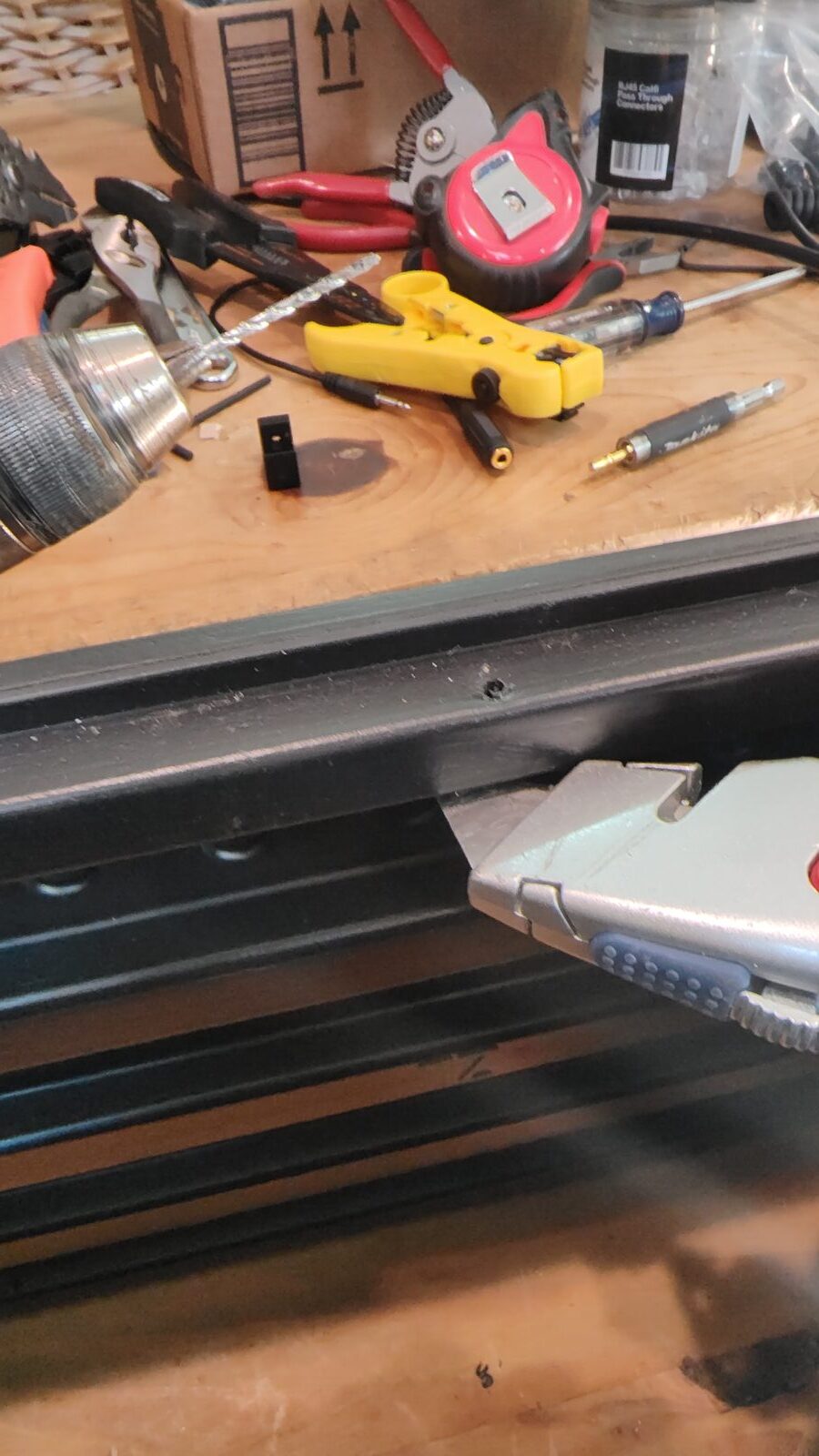
- Cut a section from the shelf to provide the outlet clearance needed.
Problem 5
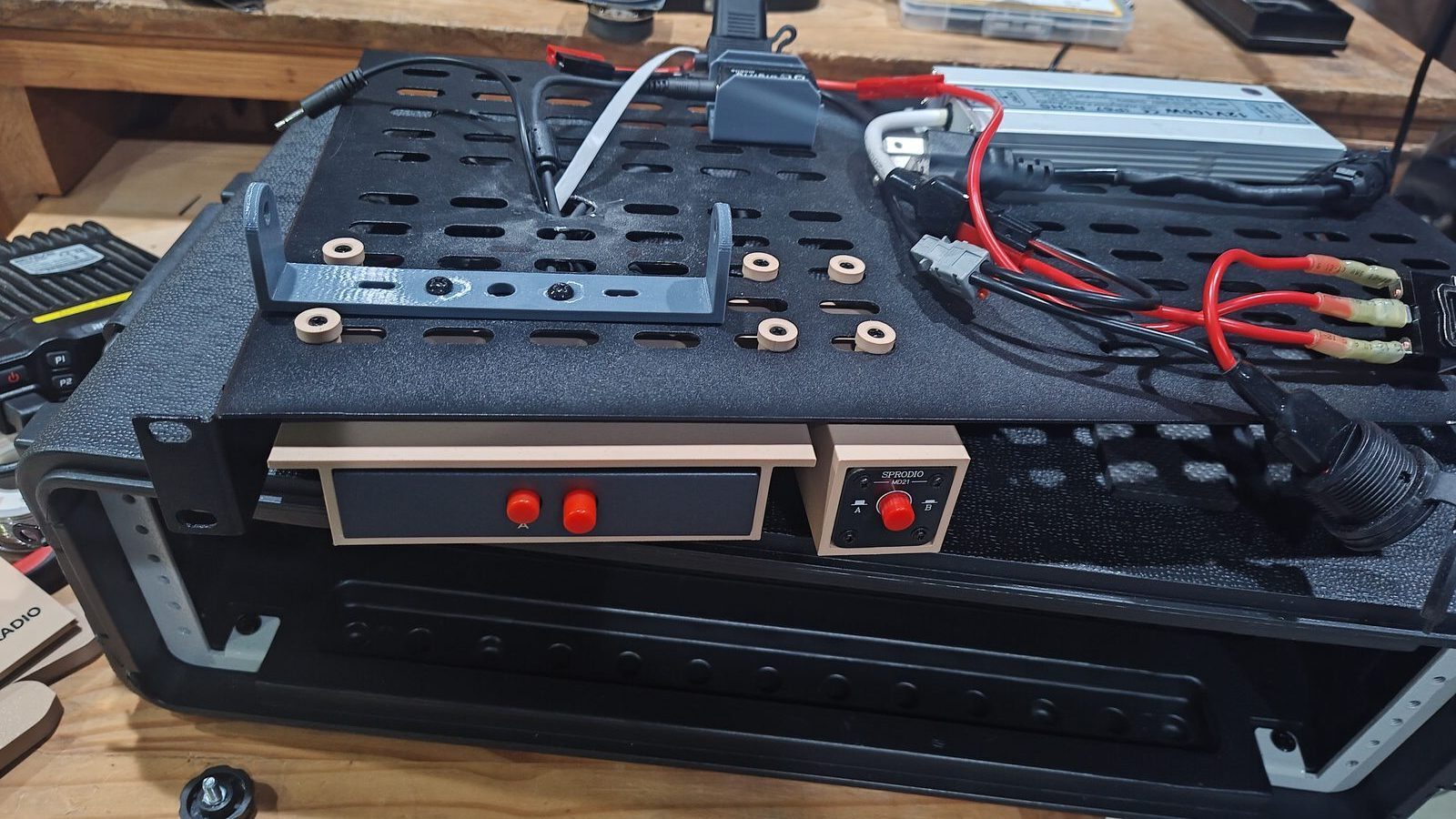
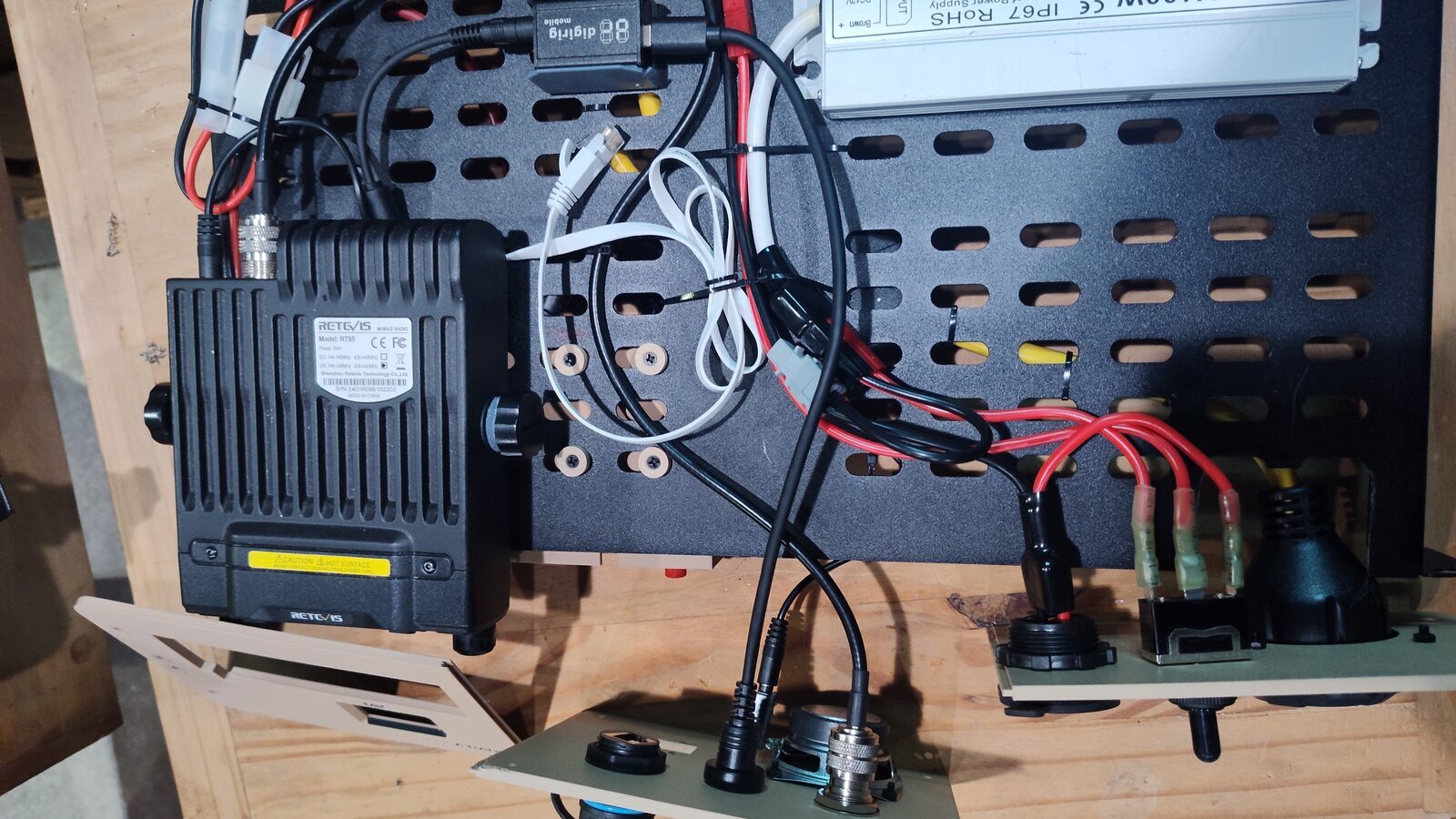
- The oval holes in the shelf are not wide enough for some of the wires to pass through.
Solution
- Drill a hole in the shelf by widening one of the oval openings.
Problem 6
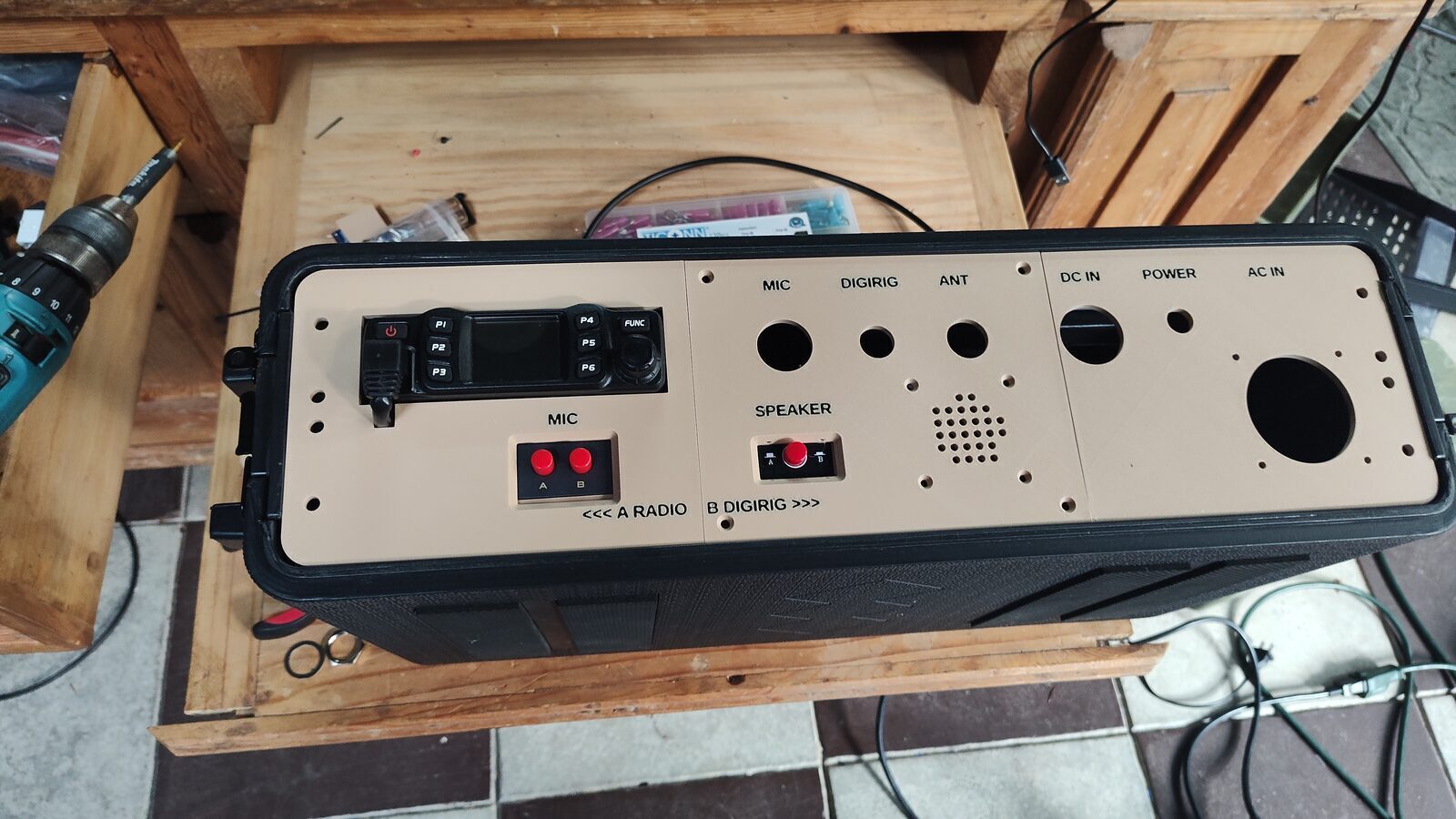
- The center faceplate section may come loose because it is not screwed to the rails.
Solution
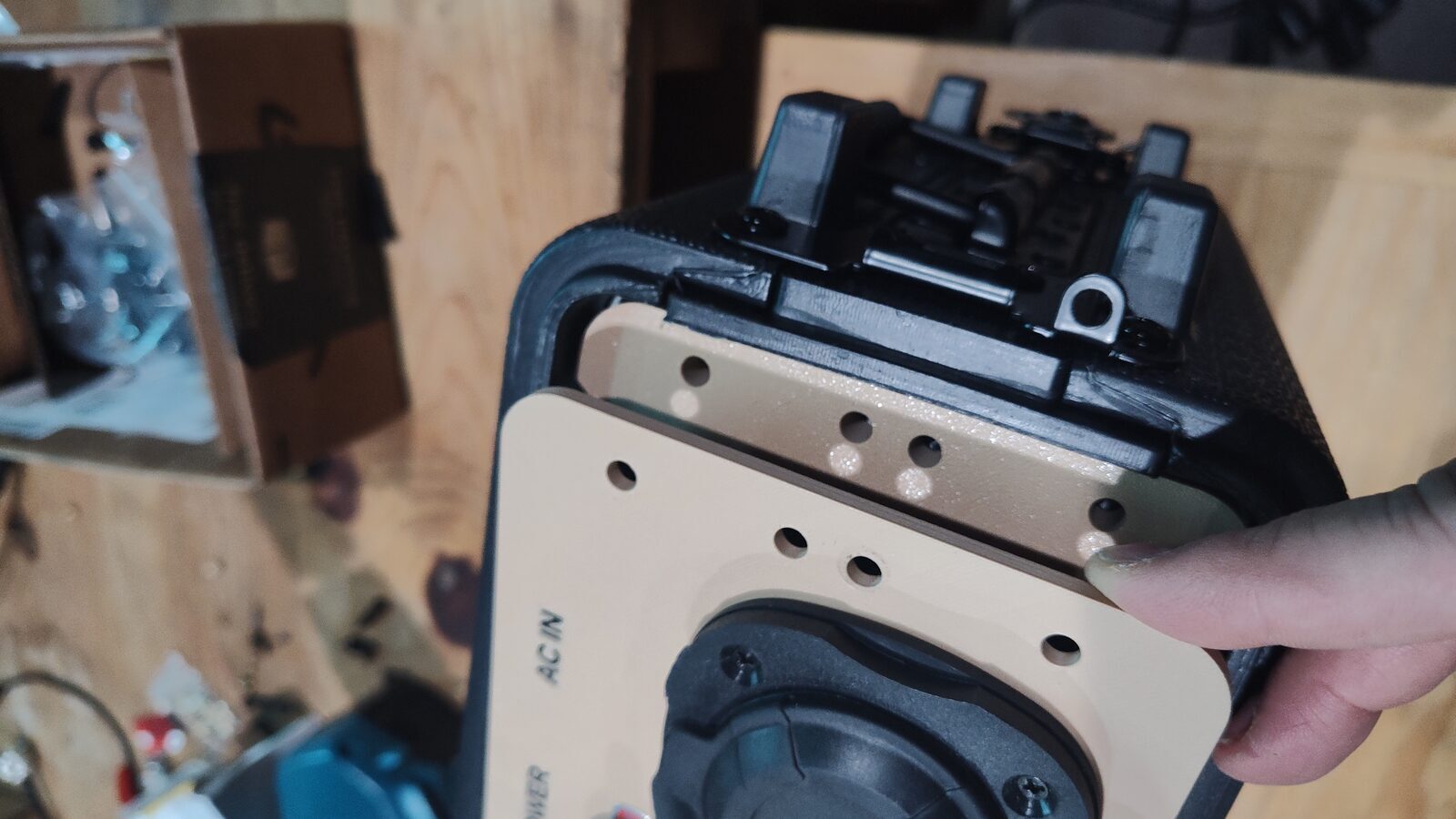
- Add holes to the four corners of the plate so you can drill small pilot holes into the case plastic and secure it.
Problem 7
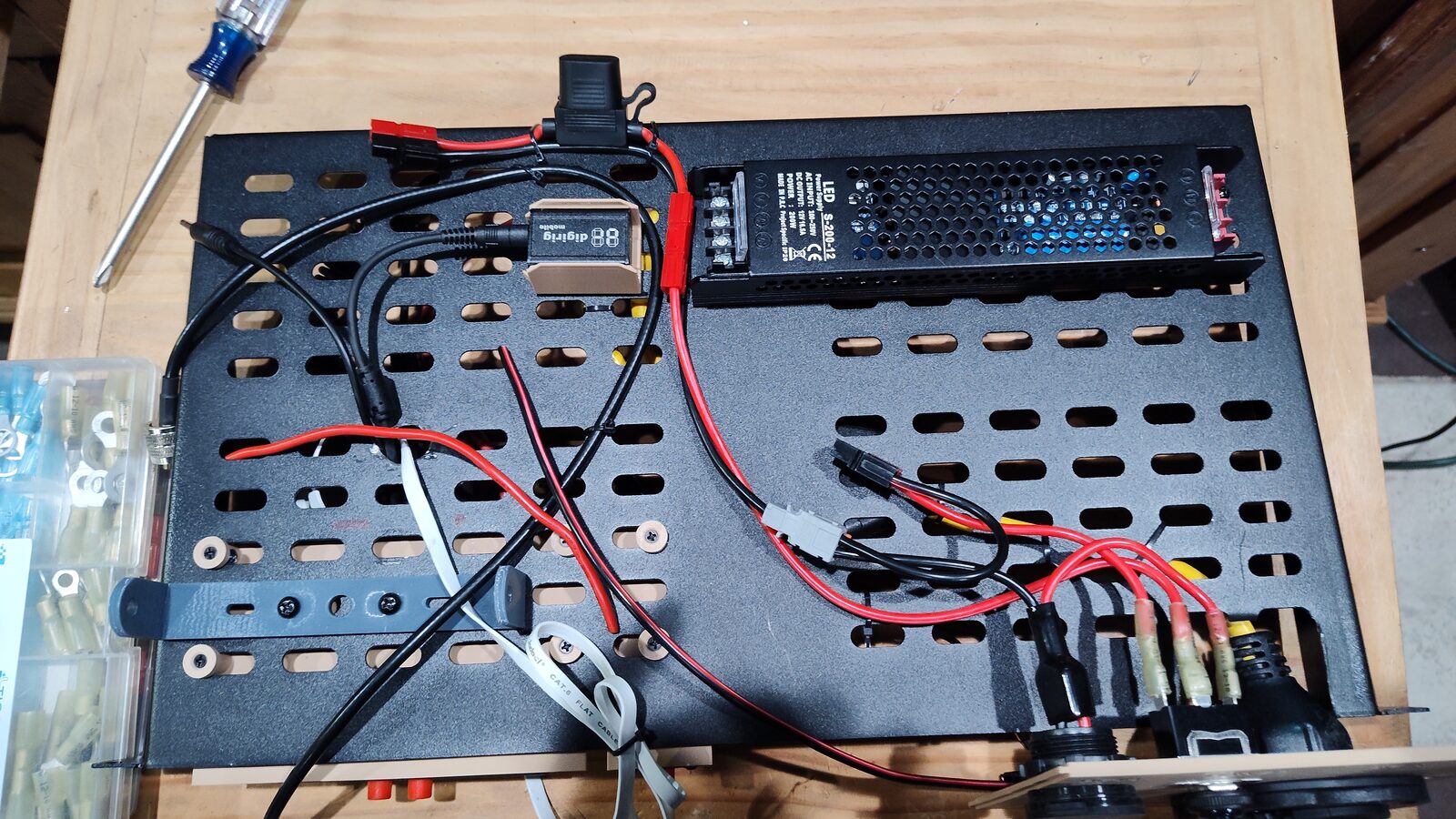
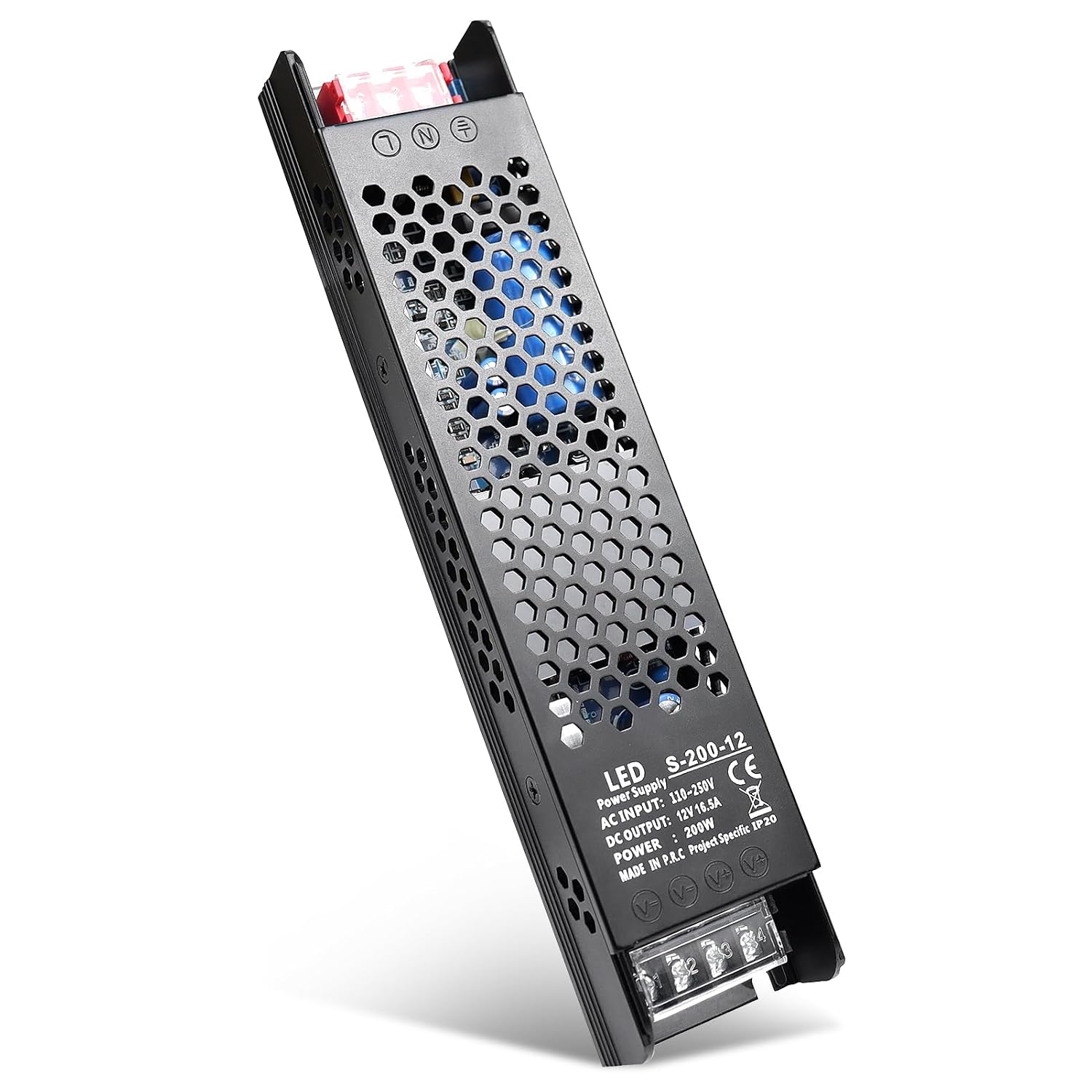
- The original power supply may not provide enough power for the complete go-kit setup.
Solution
- Upgrade to the 200W power supply listed in the bill of materials.
Problem 8
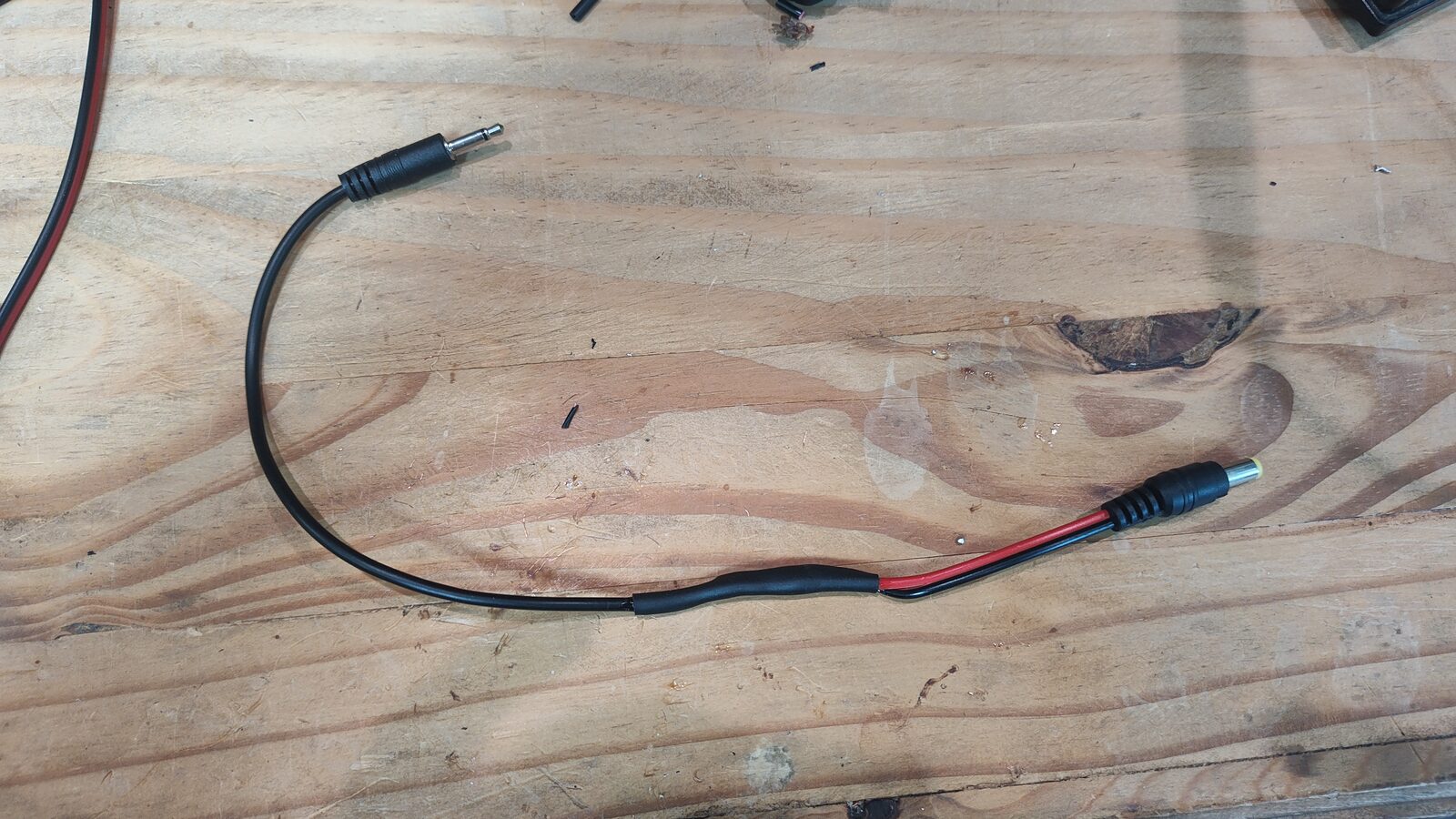
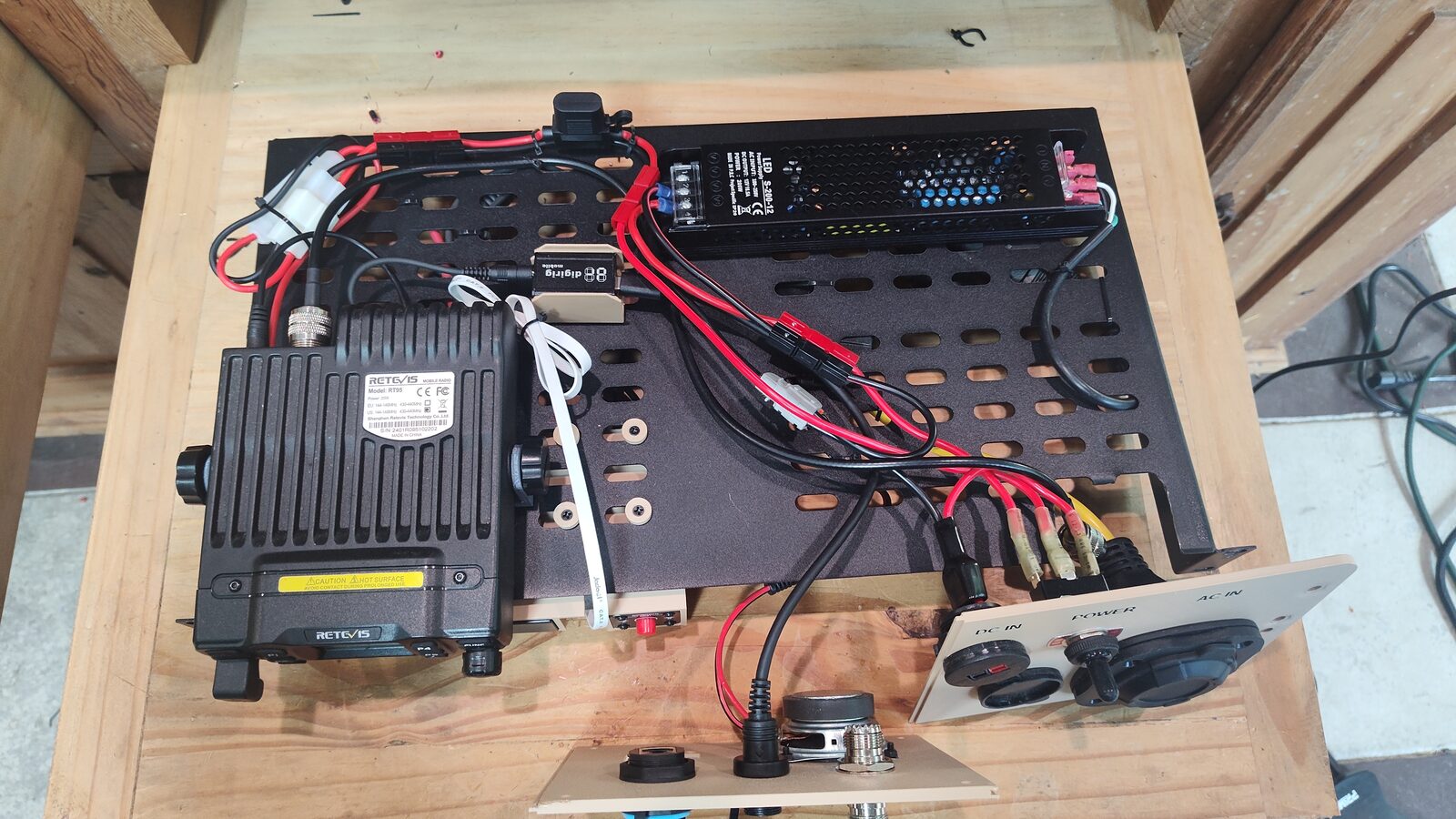
- The audio jack broke away from its mount while replacing the power supply.
Solution
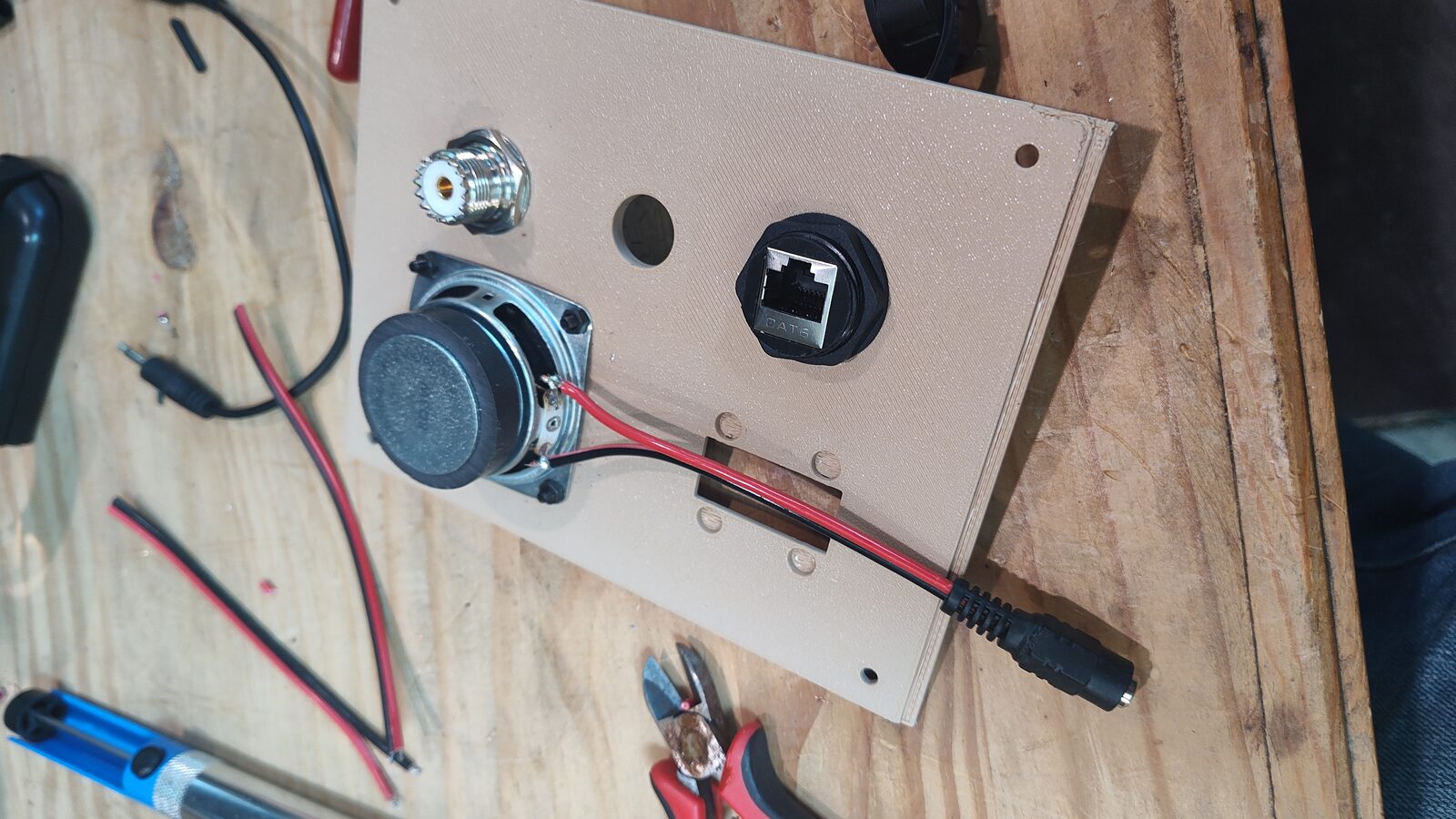
- Replace the jack mount with a wire connection. I had 2.1mm low-voltage male and female pigtails on hand, so I wired a 3.5mm jack pigtail to one using heat-shrink solder connectors and another layer of shrink tube. The matching pigtail was soldered to the speaker leads.
Problem 9
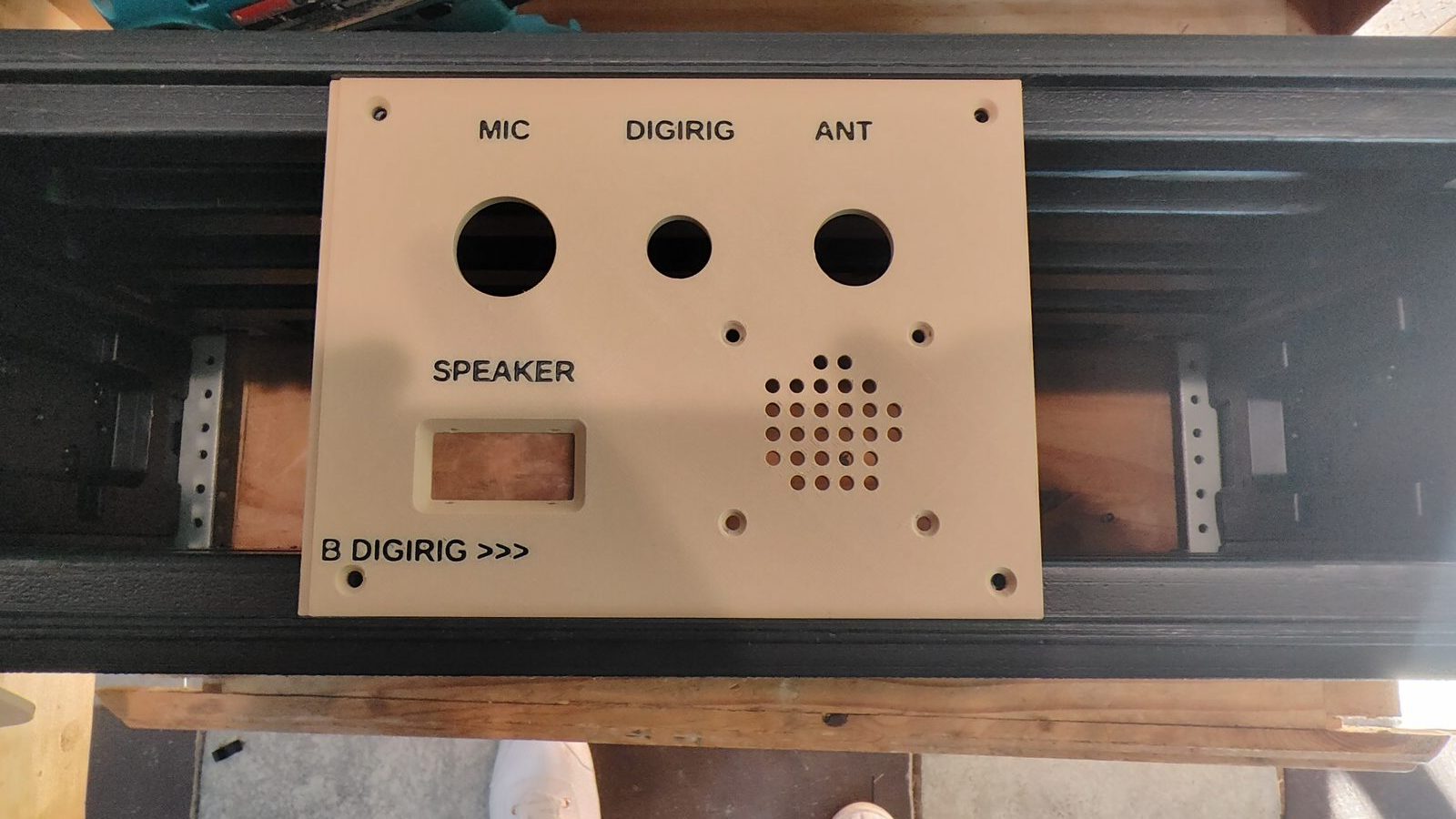
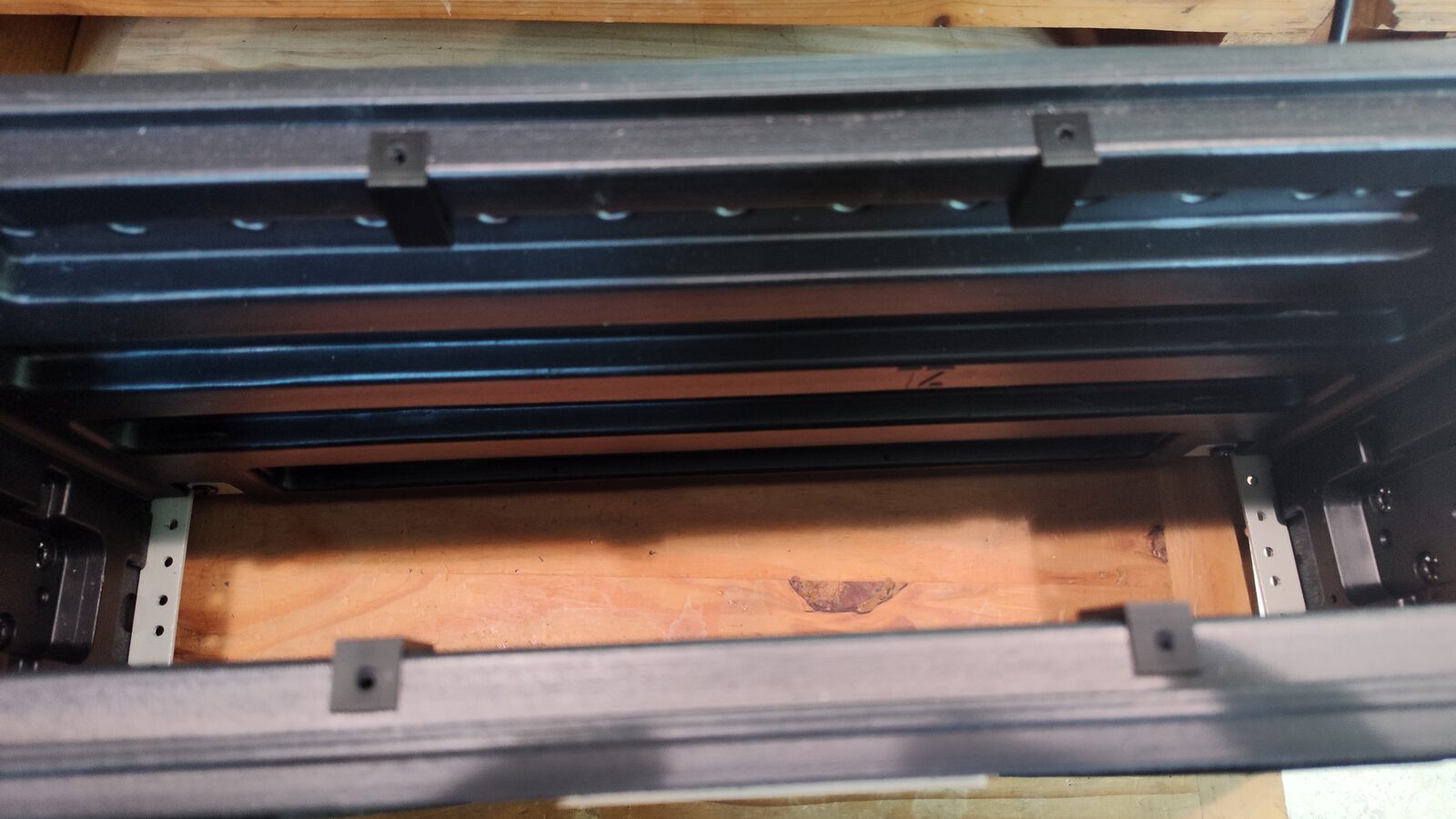
- The center faceplate screws can strip the plastic in the thin wall of the flange.
Solution
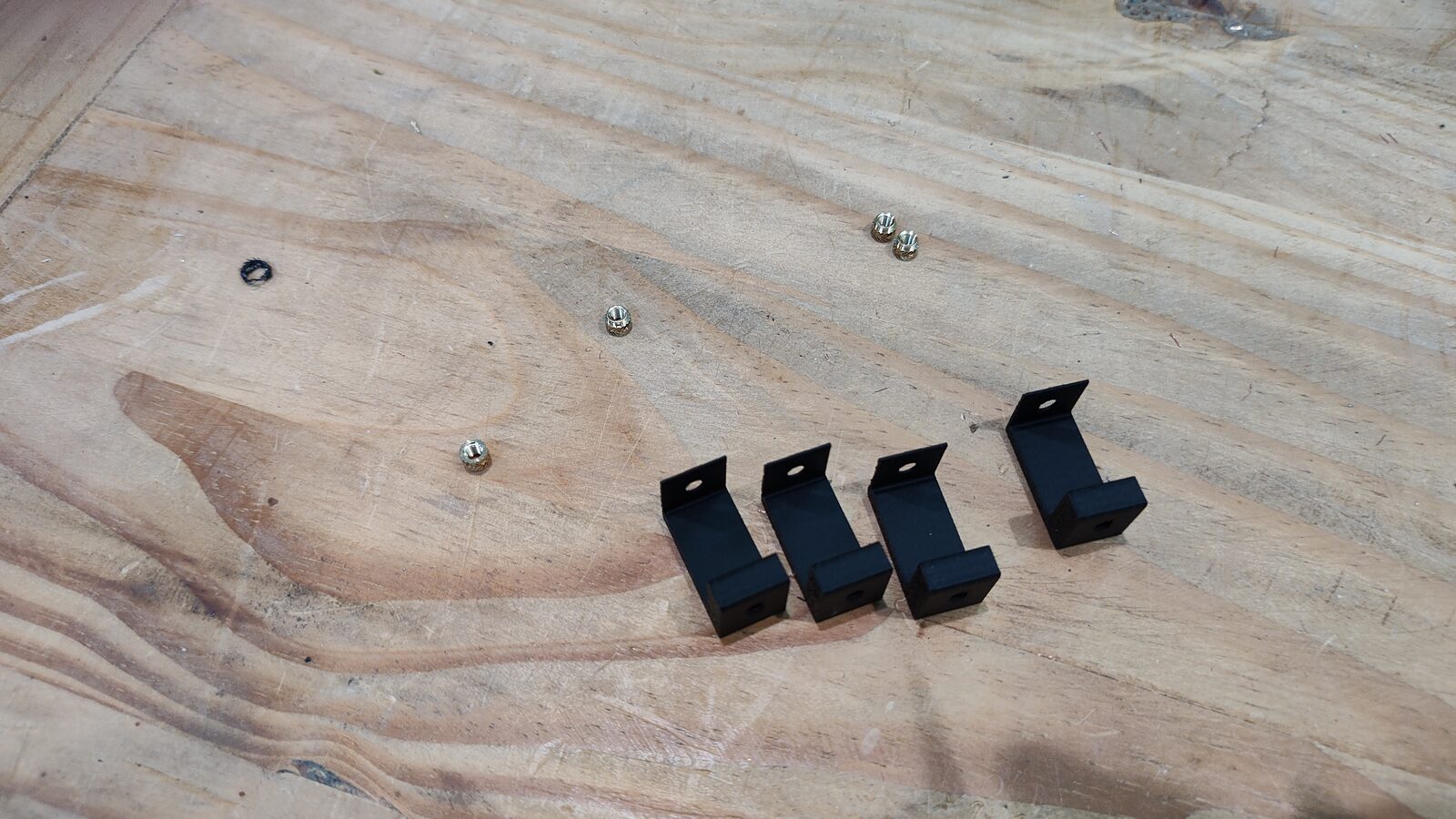
- With the 3D-printed U-clips, add a threaded insert with a soldering iron as shown in the video. Confirm the holes are aligned, then glue the U-clips into place.
Problem 10
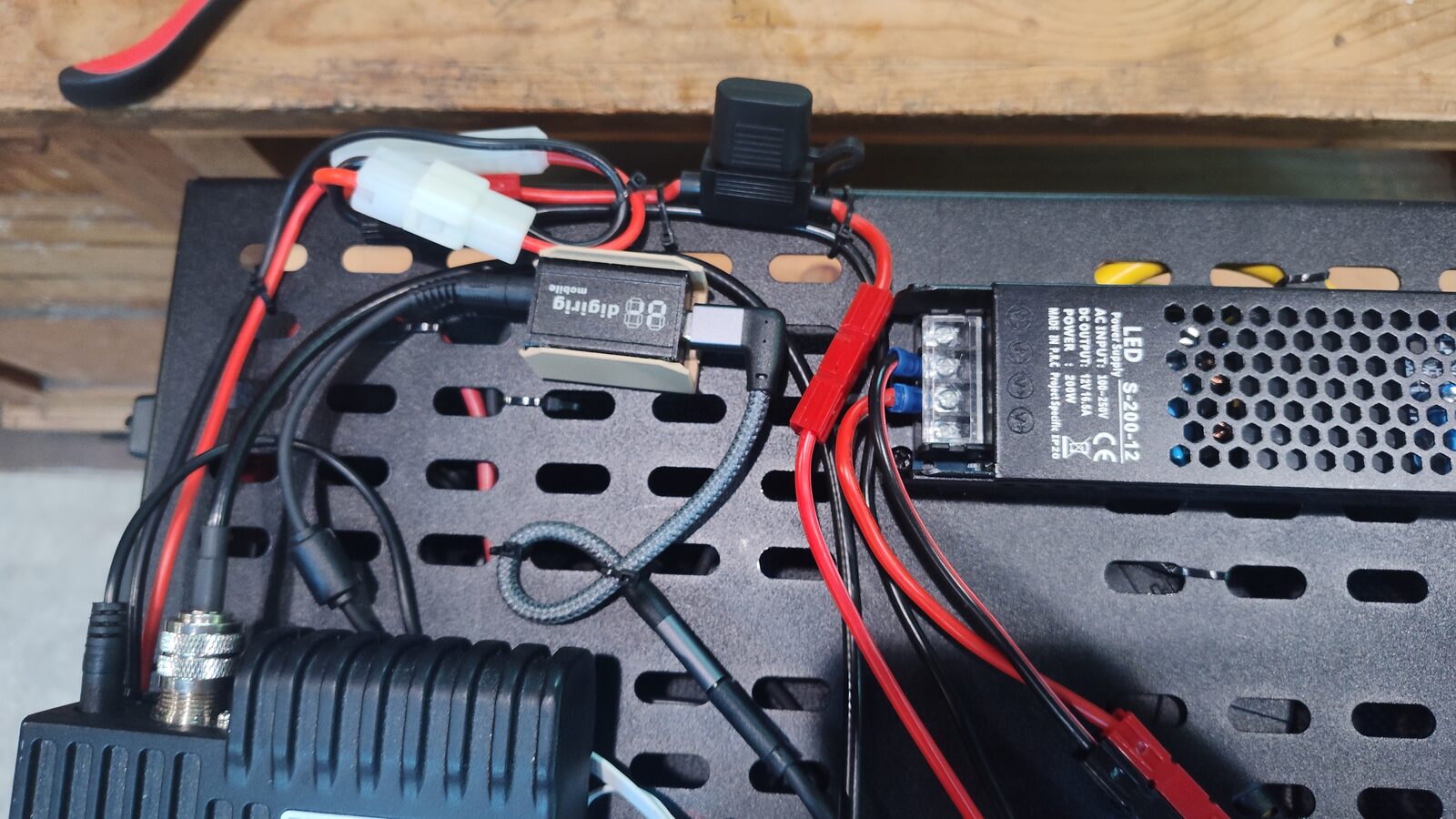
The DigiRig was placed too far inside the case to remove easily, and the radio has two 10-amp fuses: the attached AGC fuse and the inline ATO fuse. Either fuse could blow, but the more accessible ATO fuse should be the intended failure point.
Solution
- Move the DigiRig to the back edge of the shelf and add a 6-inch right-angle USB-C extension cable for easier access.
- Replace the radio's attached 10-amp AGC fuse with a 30-amp AGC fuse so the inline 10-amp ATO fuse fails first.
Bill of Materials
Bill of materials
The current parts list for the battery box, radio go box, antenna options, and supporting hardware is below. Product links open in a new tab for reference. Amazon prices were checked on September 25, 2026, and may change.
Many of the connectors and other hardware are sold in packs, so this list includes considerably more hardware than this project needs. The two crimping tools should also be useful for many more projects.
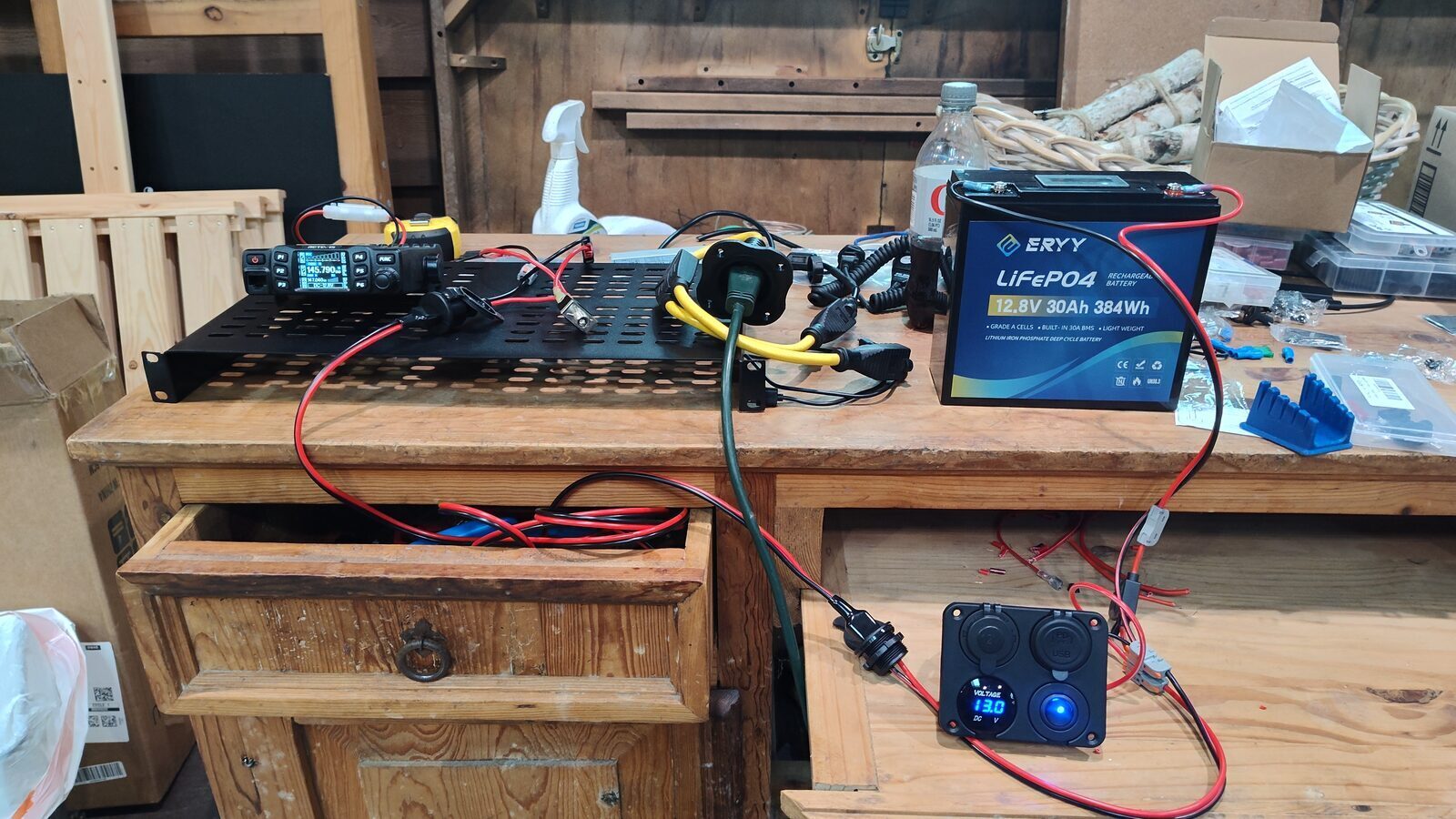
Battery box
Show all remaining items
Go box
Go box connections
Antennas
Other hardware
Build
Assembly and field setup
The following notes cover the physical modifications, wiring, and assembly sequence for the radio hardcase.
Shelf Mods
- Drill a hole in the left side of the shelf for a wire passthrough. I widened an existing hole five rows back from the front.
- Using an angle grinder, cut out the section of the shelf in front of the left two holes. This provides clearance for the AC power socket.
3D-Printed Parts
- Print all the parts.
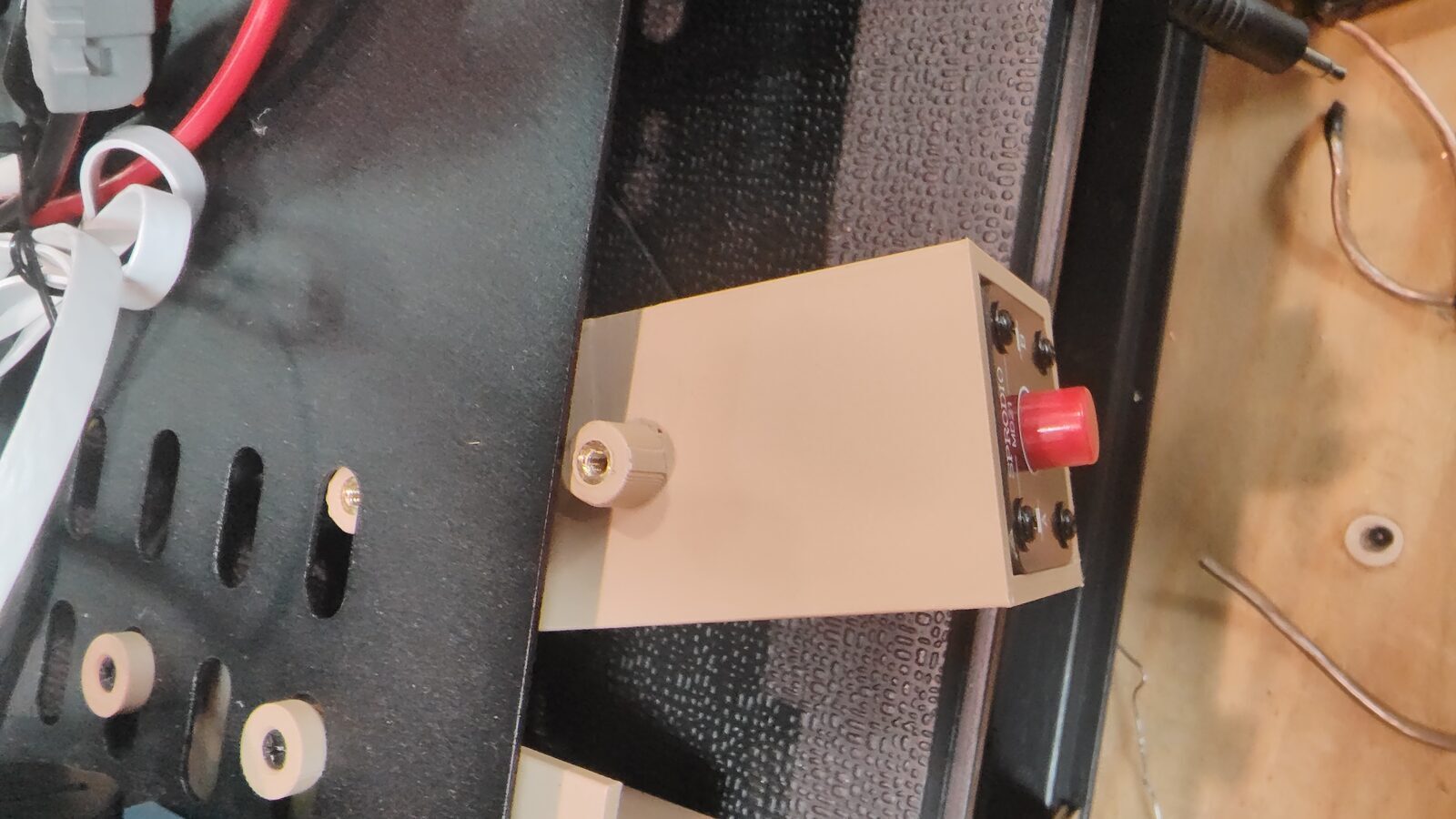
- In the two A/B switch mounts, use a soldering iron to insert an M3x4x5 threaded brass insert into each standoff. The inserts should be flush with the top of the standoff.
Top of the Shelf
- Mount the power supply as shown using screws and nuts.
- Mount the radio bracket to the shelf using screws and nuts.
- Mount the DigiRig holder using screws and nuts, positioning the DigiRig at the back edge of the shelf for easier removal.
- Use a 6-inch right-angle USB-C extension cable so the DigiRig connection remains accessible.
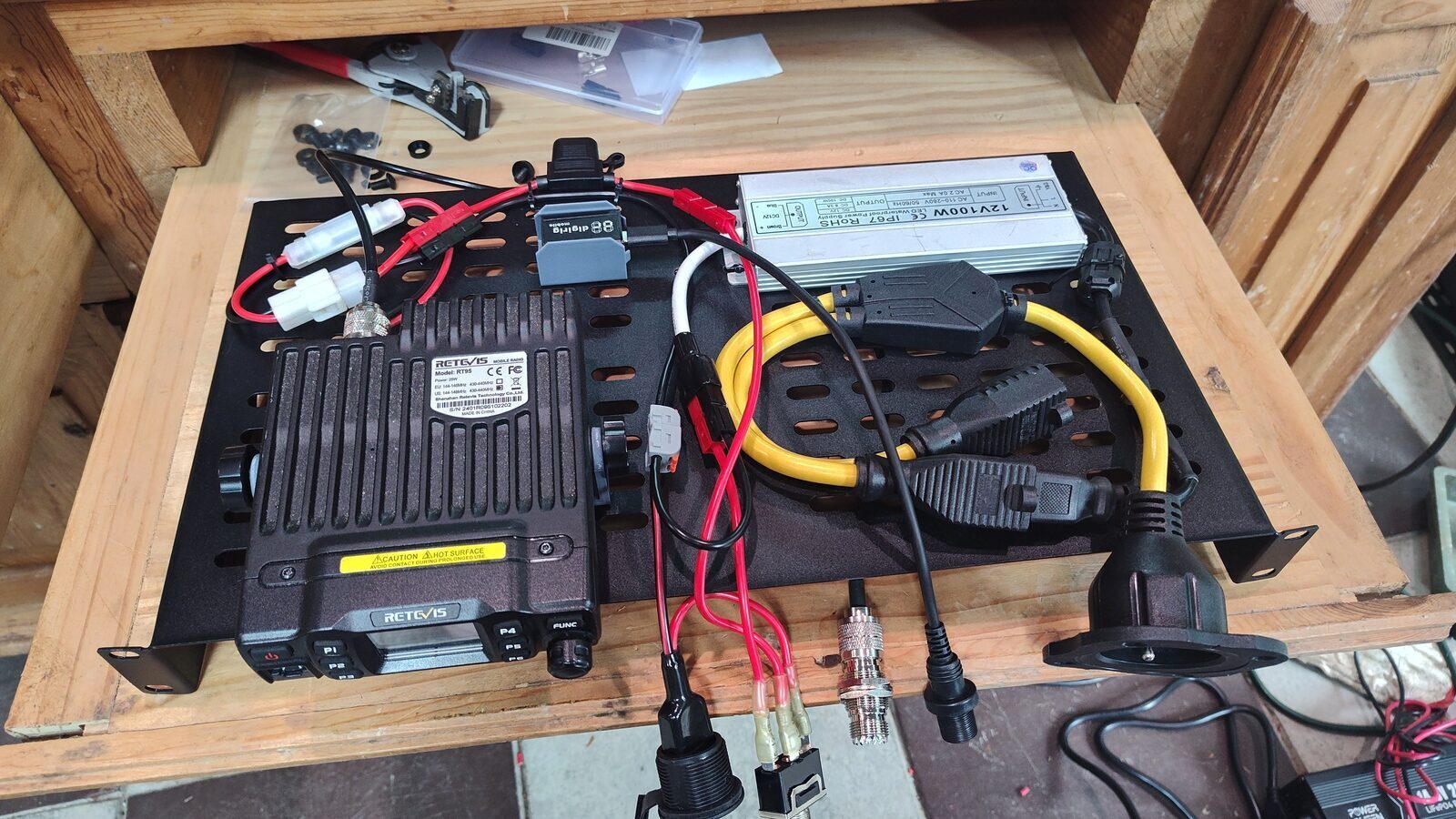
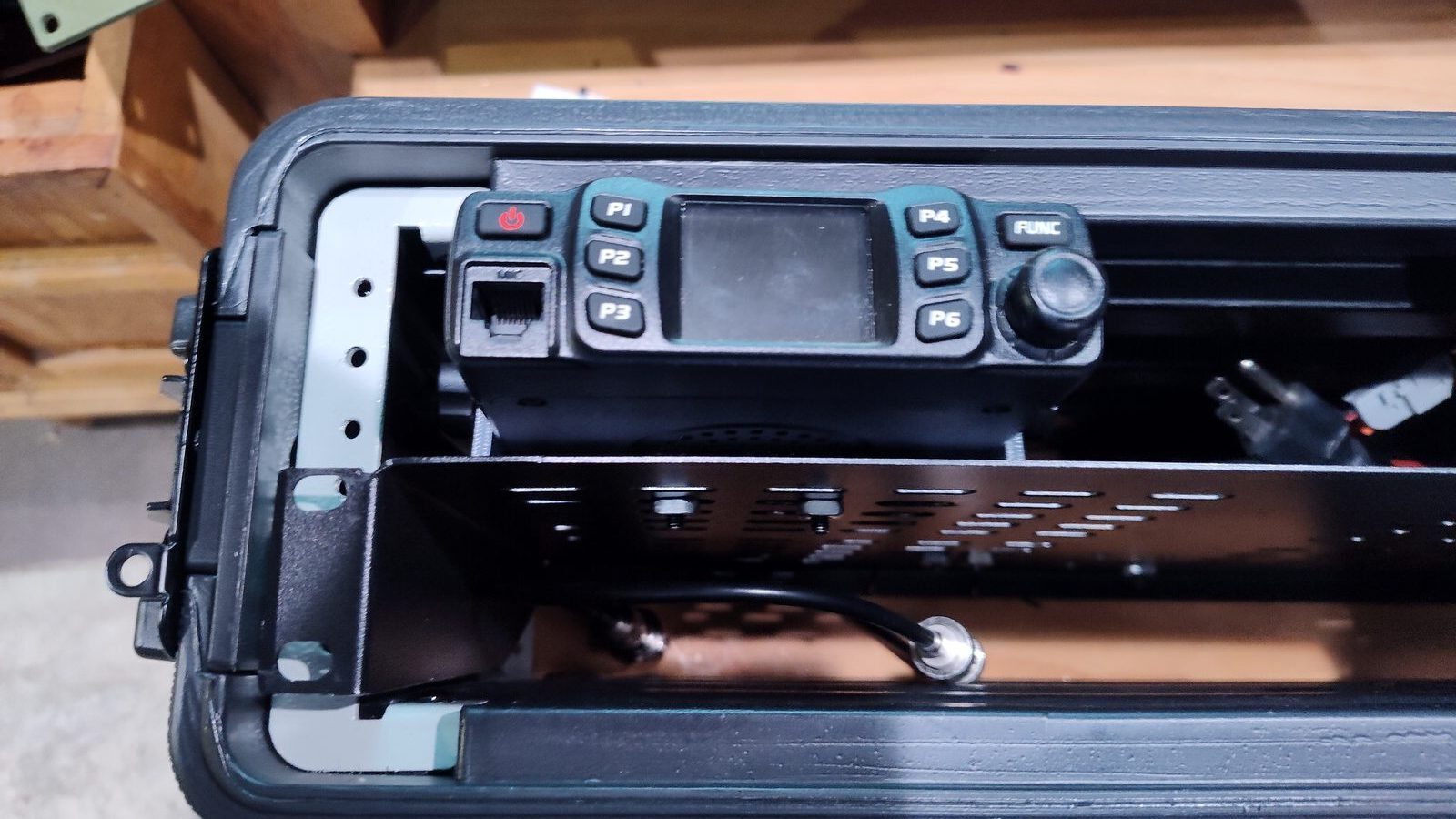
Bottom of the Shelf
- Mount the RJ45 A/B switch underneath the radio bracket as shown, using the M3 screws and printed washers.
- Mount the audio A/B switch underneath the radio bracket as shown, using the M3 screws and printed washers.
Power Wiring
- Create a common ground using the black wire for the power supply output and the Powerpole input.
- The power switch selects which hot (red) power source to use.
- Flipping the switch to the left makes contact with the right terminal. I oriented the switch left and right so the switch points toward the AC or DC input. Wire the DC input on the left to the right terminal, and wire the power supply output hot wire to the left terminal.
- Wire the center terminal on the switch to the fuse, which then connects to the radio.
- Replace the 10-amp AGC fuse attached to the radio with a 30-amp AGC fuse so the inline 10-amp ATO fuse is the accessible fuse that fails first.
Faceplate
- Mount the speaker to the center faceplate using M3 screws and nuts.
- Using 2.1mm low-voltage male and female pigtails that I had on hand (but any two-wire connectors would be fine here), wire the 3.5mm jack pigtail to one of the 2.1mm pigtails using heat-shrink solder connectors, then add another layer of shrink tube for protection.
- Solder the matching 2.1mm pigtail to the speaker leads so the speaker can connect to the A/B switch with a standard audio cable.
- With the 3D-printed U-clips, add a threaded insert with a soldering iron as shown in the video to reinforce the center faceplate screw locations. Confirm the holes align before gluing the U-clips into place.
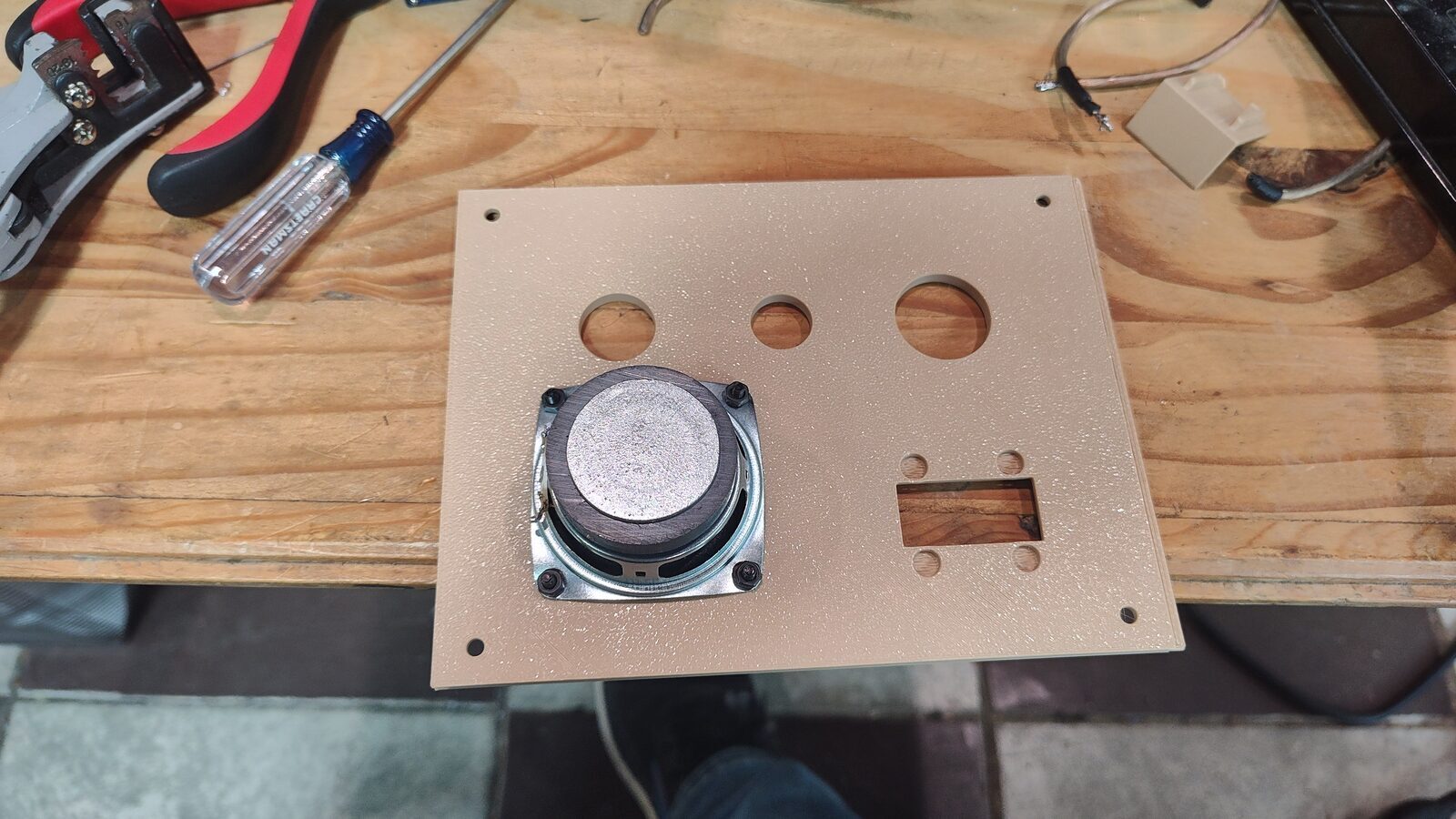
The remaining wire routing is left to the builder to arrange as appropriate. The build photographs provide routing examples.
A/B Switches
The microphone output and speaker output on the back of the radio connect to the I/O ports on the switches. I used a 90-degree right-angle RJ45 6-inch cable (in the parts list) and routed it just below the shelf.
- Wire RJ45 A to the mic jack on the center faceplate.
- Wire RJ45 B to the DigiRig cable.
- Wire audio A to the speaker on the faceplate.
- Wire audio B to the DigiRig cable.
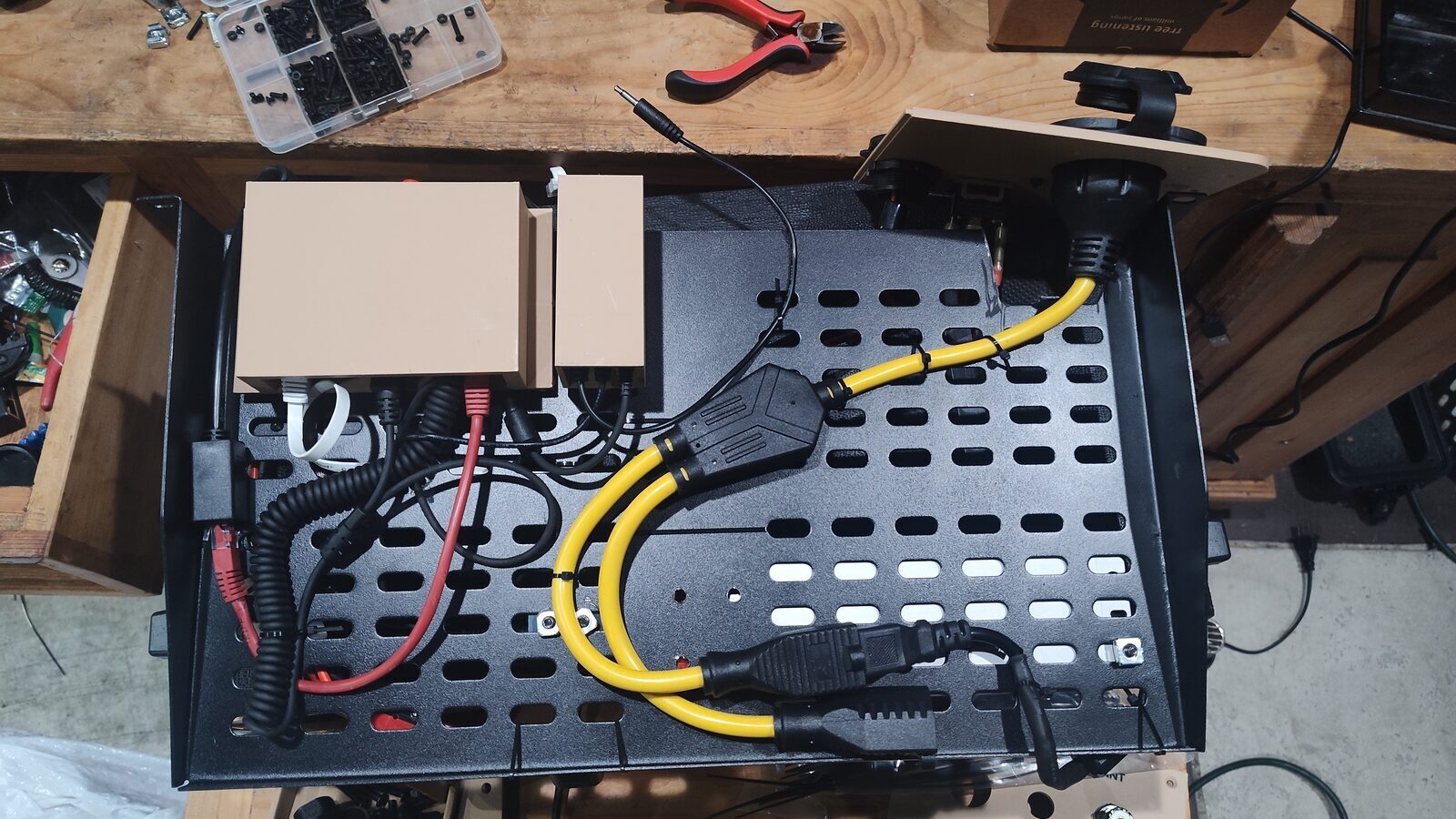
Final Assembly
- Mount the radio using the thumbscrews.
- Attach the port cables to the center and right panels.
- Insert the spacer behind the panel. Check the orientation so the curve matches the case, the holes line up, and the cutout aligns with the shelf. Then screw the right panel in place.
- Insert the center panel. Note that the panels use a tongue-and-groove fit. Ensure that you have removed the 3D supports under the tongue and in the groove.
- Insert the left panel, again using the spacer and aligning the tongue and groove, then screw it into place.
- Drill pilot holes into the center-section corner holes, then gently hand-tighten screws into those holes. The plastic is thin, and it is easy to strip the screws.
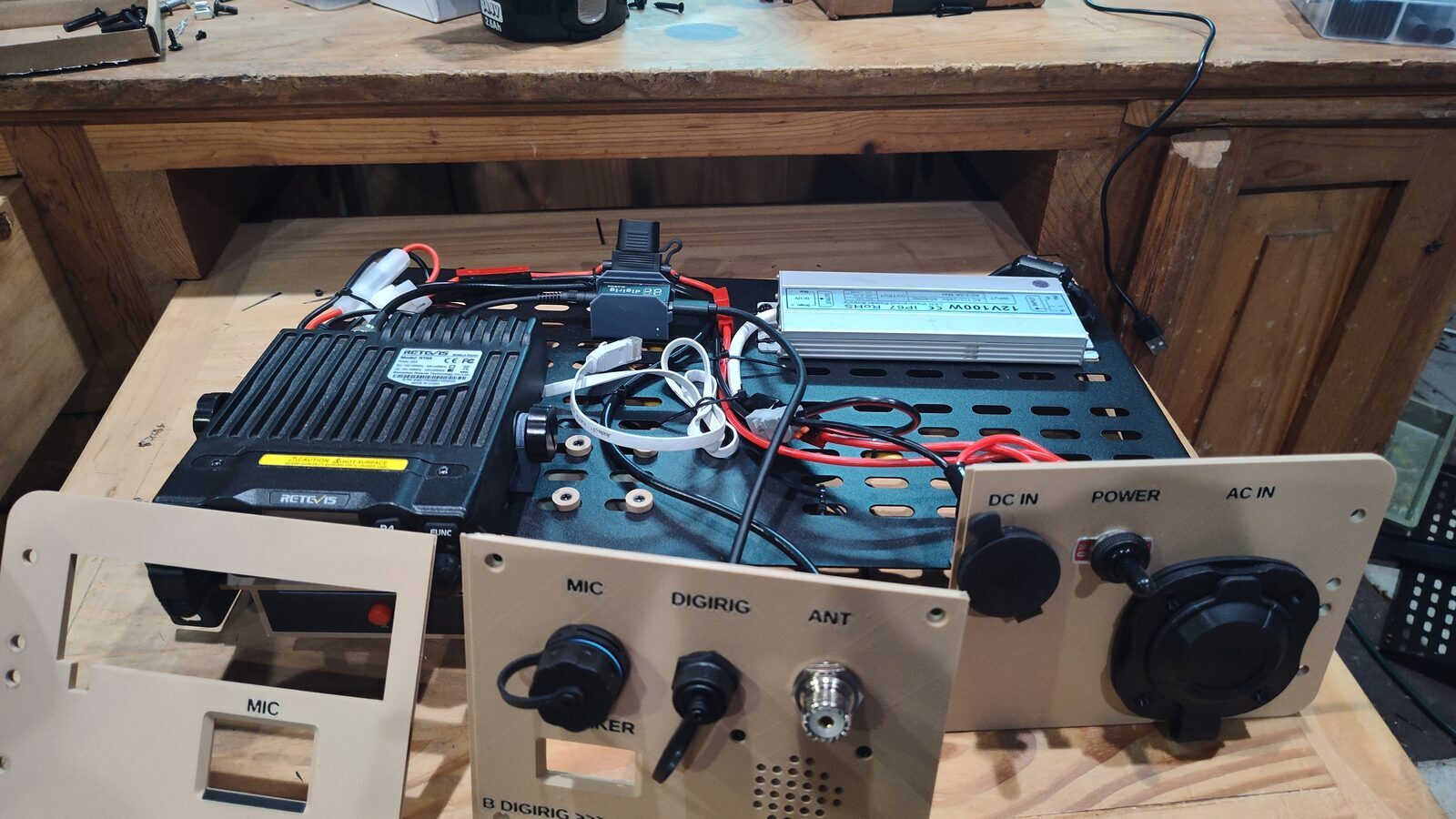
The custom enclosure and mounting parts are available as a single 3MF project file for reference or further modification.
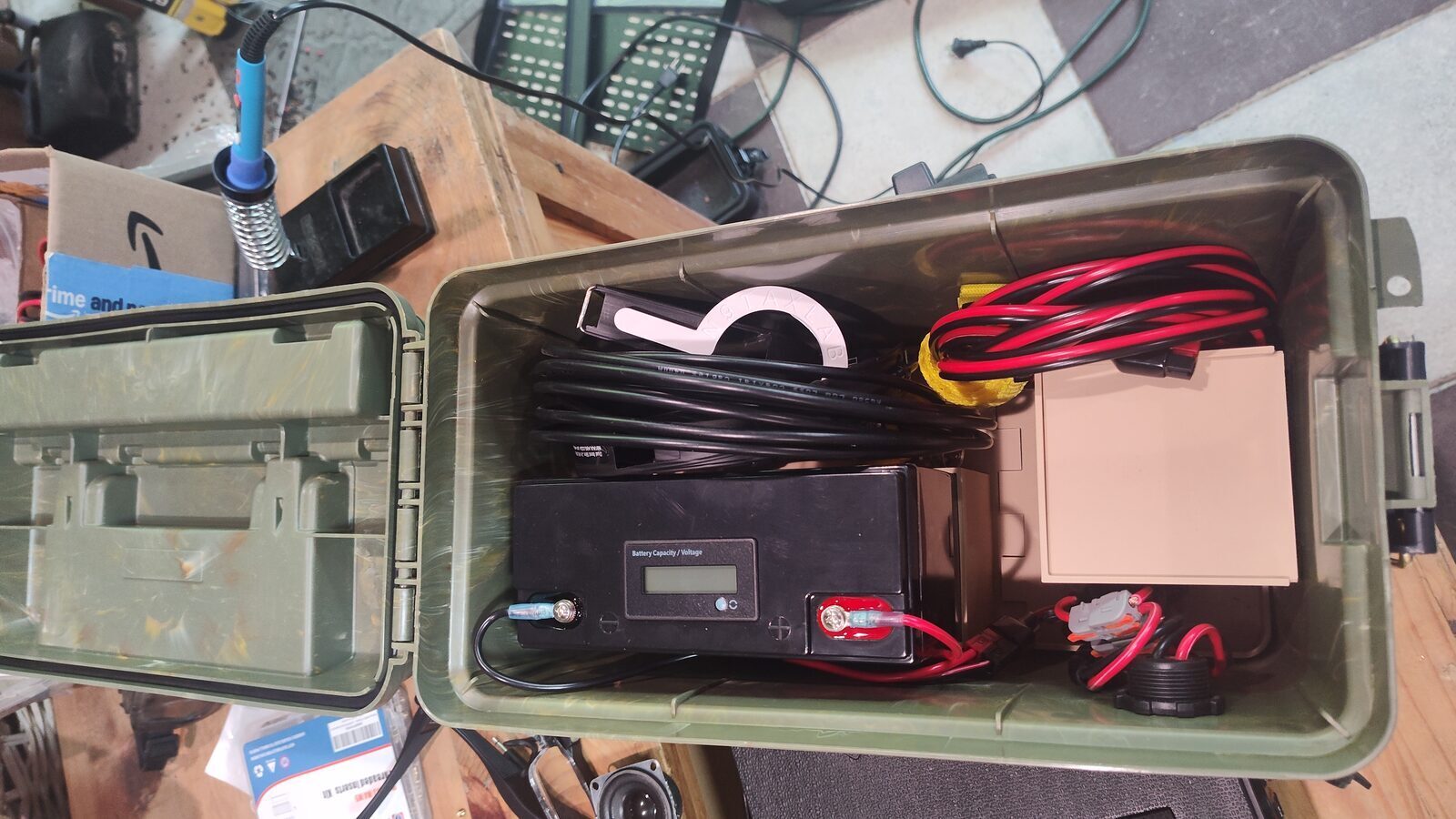
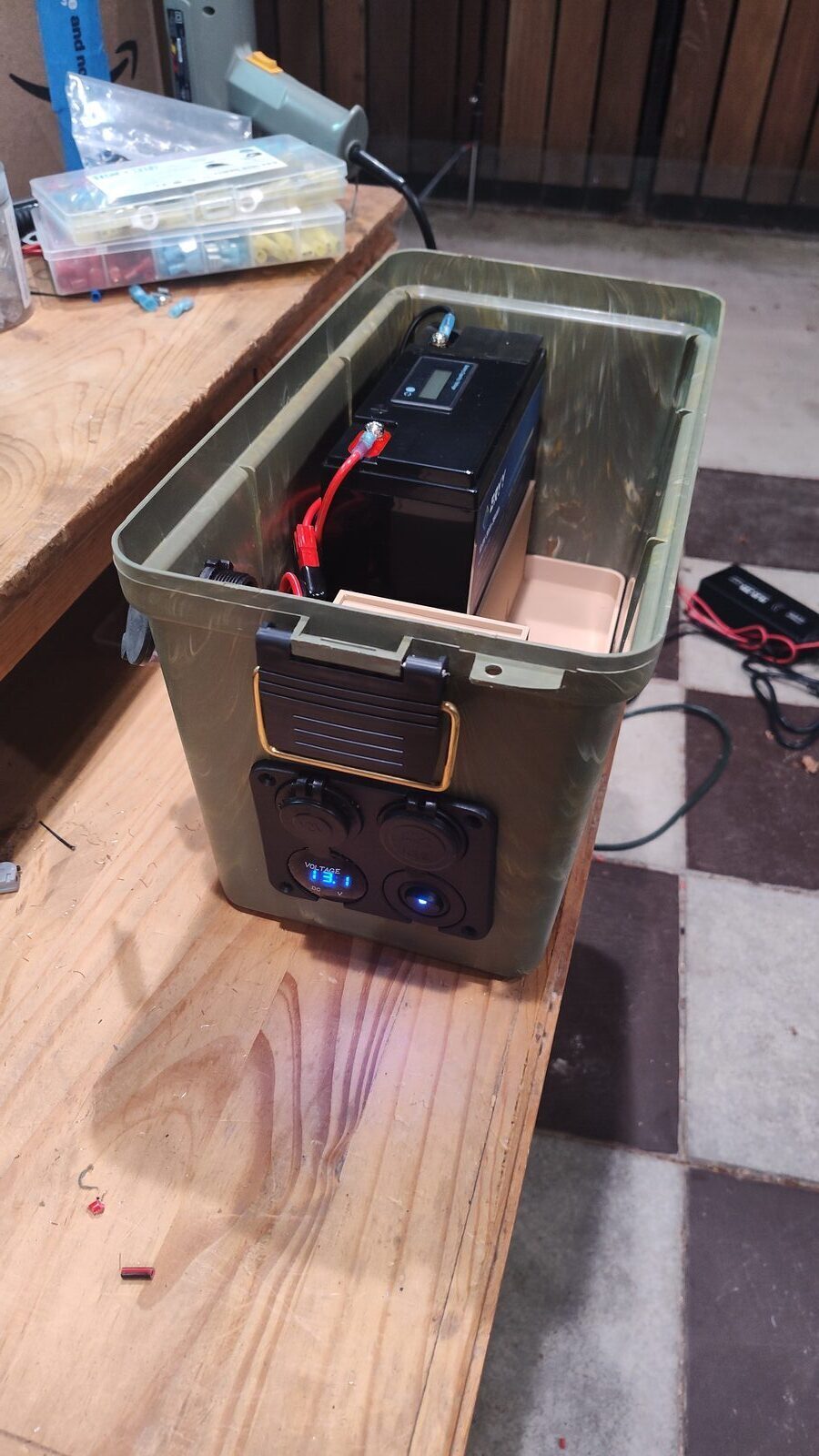
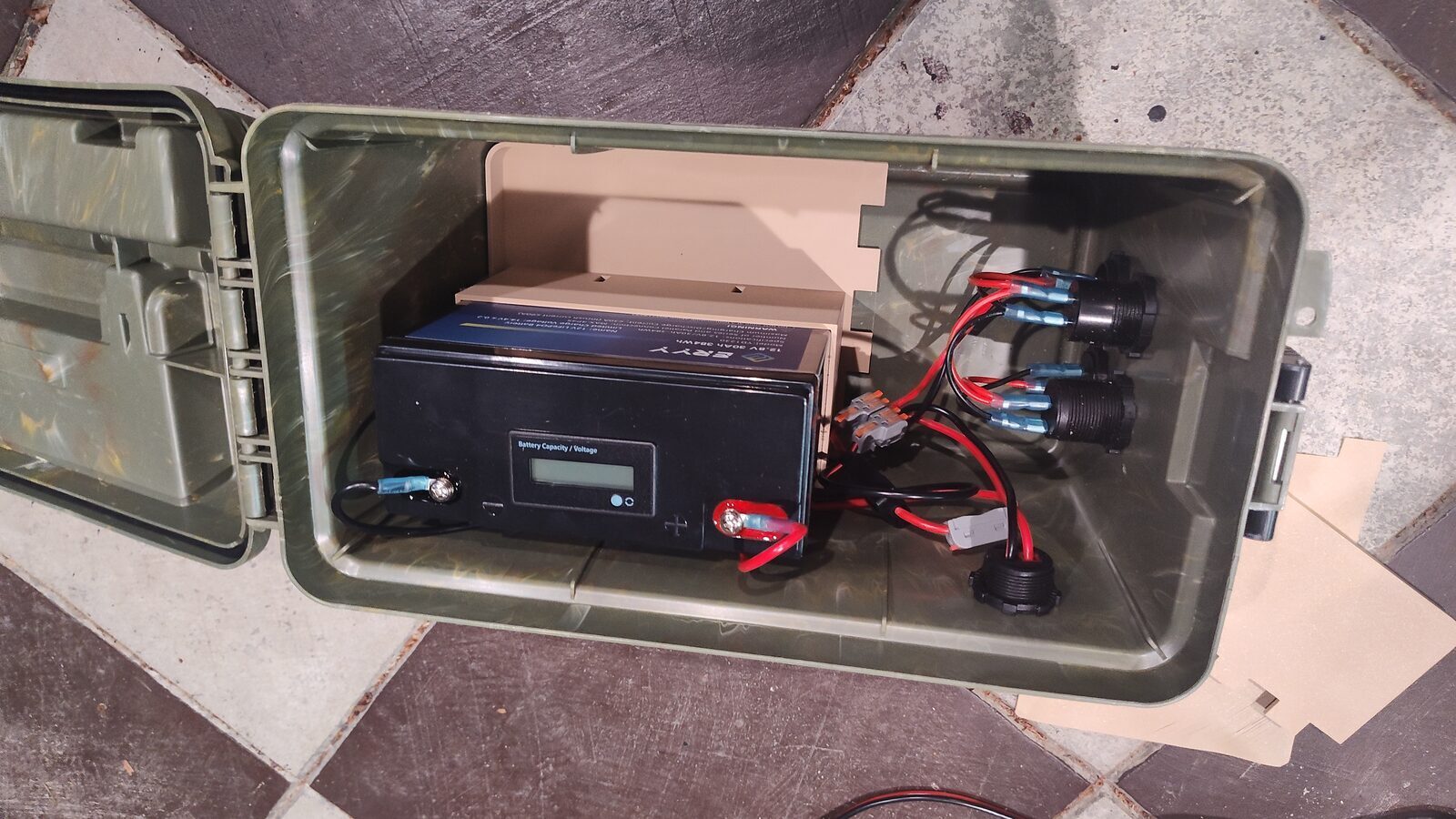
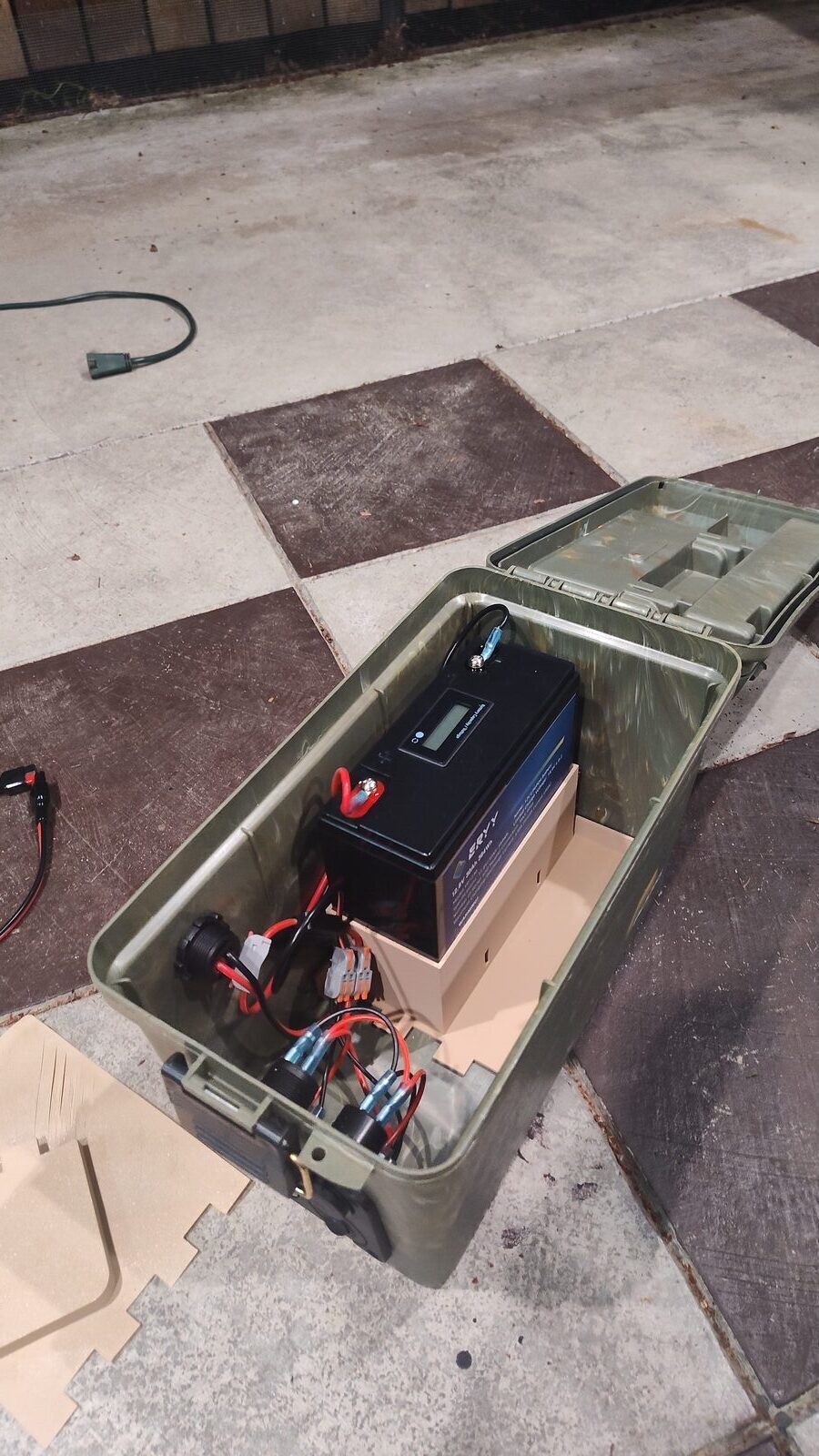
Battery Box Wiring
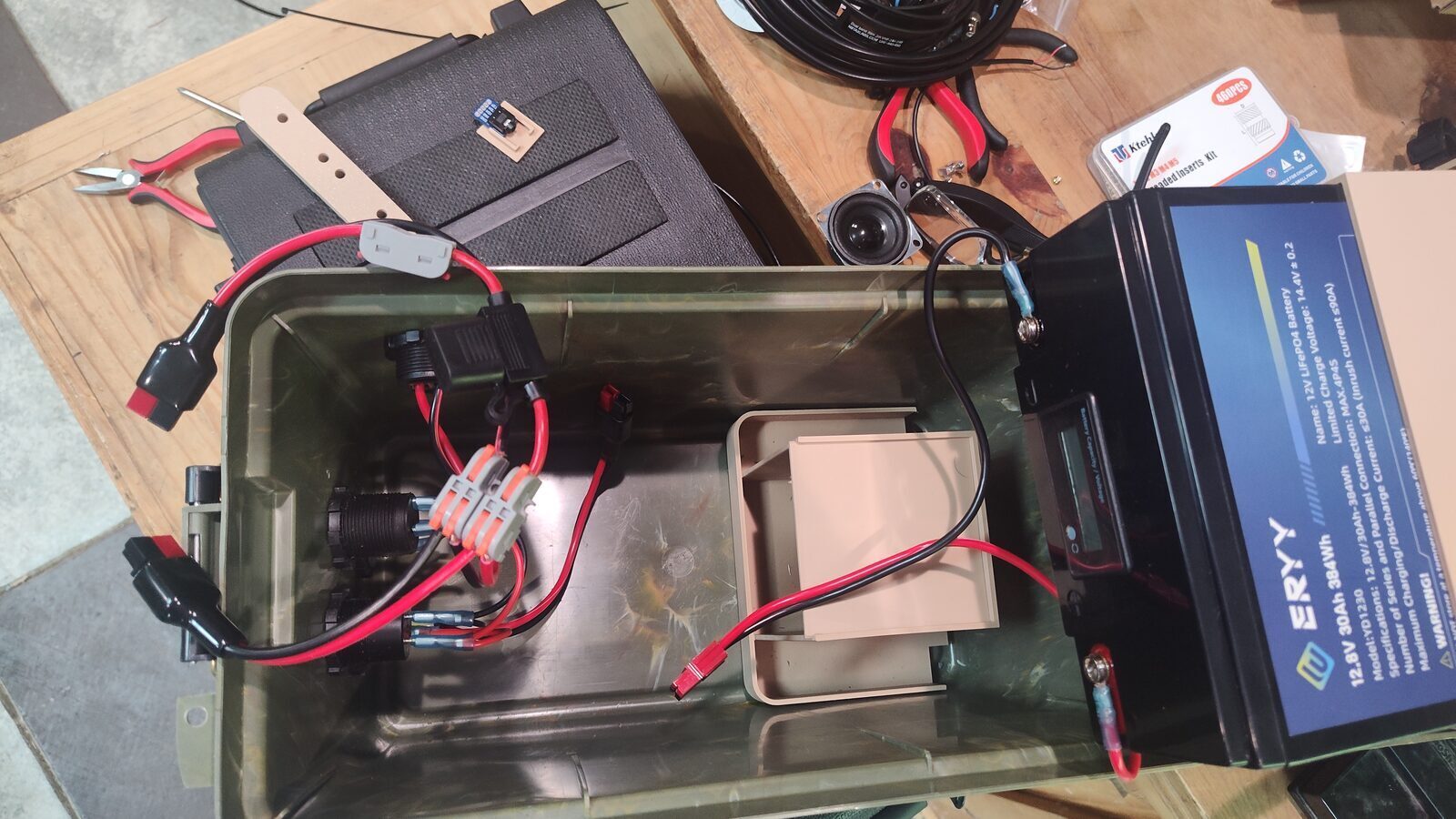
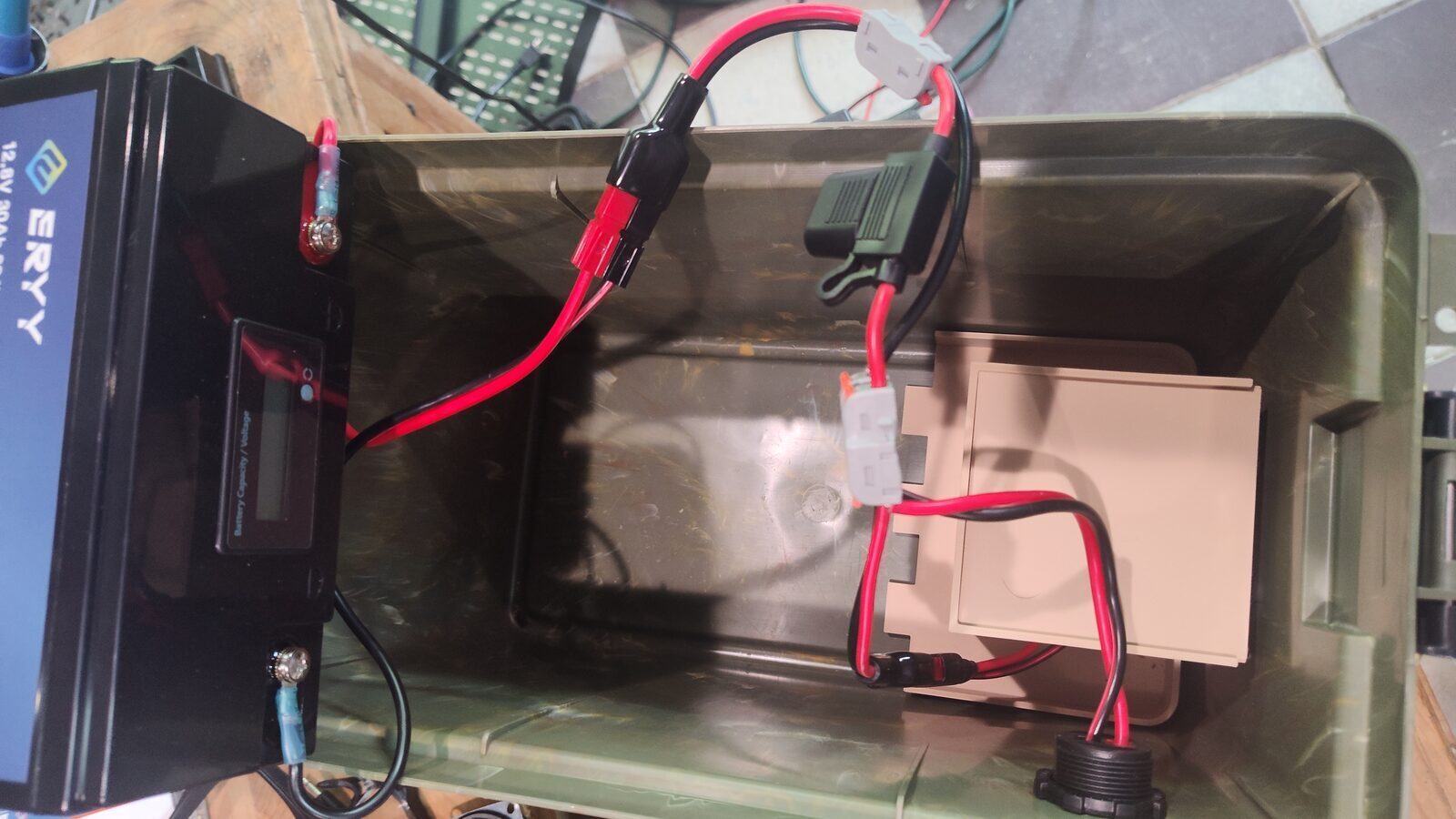
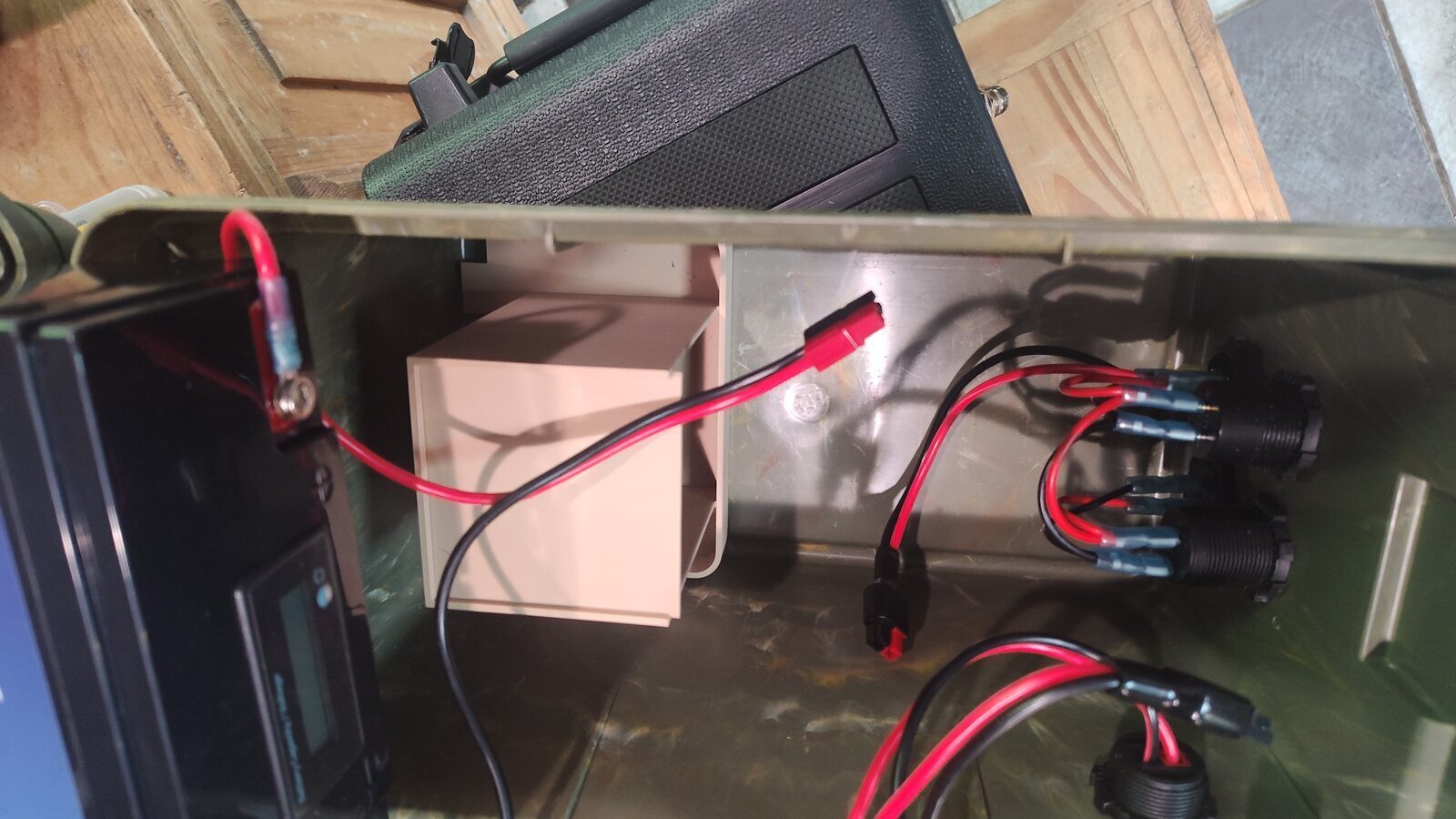
Power and switch wiring
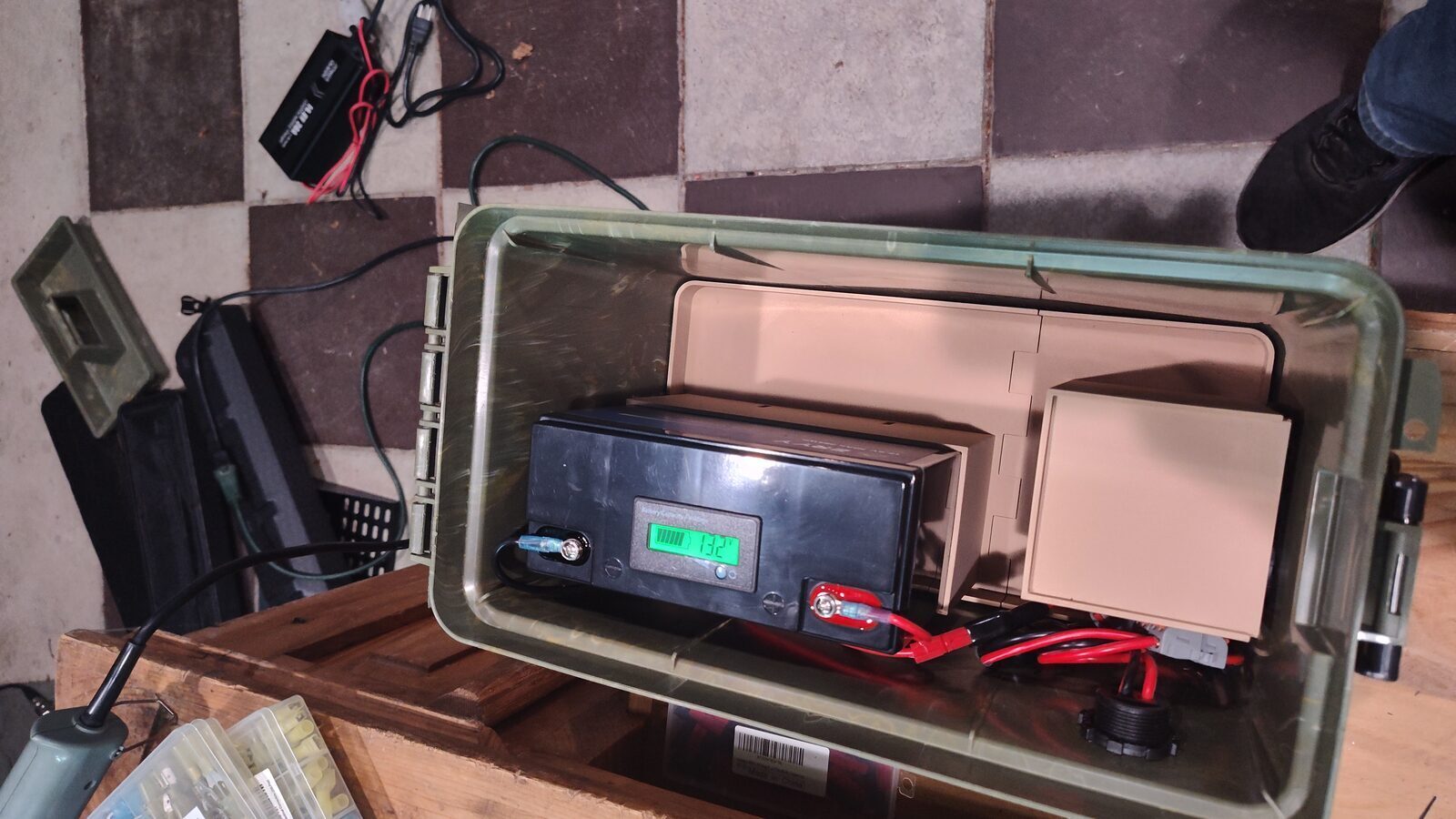
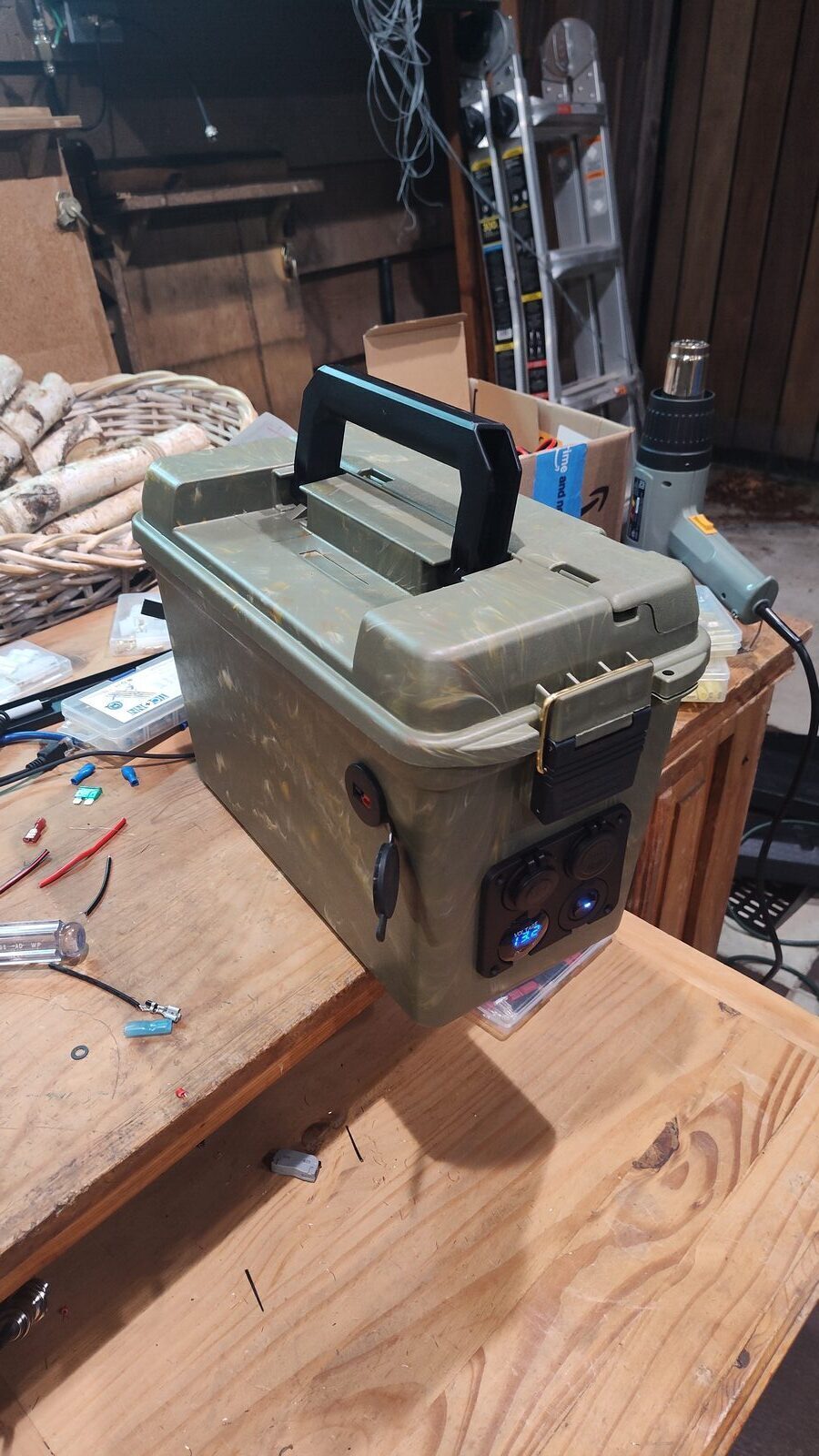
The faceplate was used as the drilling guide for the holes in the front of the battery box.
- The front-panel on/off switch is not required to be on in order to use the battery. The two paths are wired in parallel using 2x1 wire connectors.
- The front-panel wiring guide covers the main connections. For the switch wiring, the gold lead is ground, the center lead is the hot wire to the battery, and the top lead goes to the daisy chain of ports.
- There is an extra black lead that is not used; cut it off.
- Powerpole connectors were installed to make battery swaps and maintenance easier.
Gallery Two
Battery box
Gallery One
Radio hardcase